
Report an Issue from the Order Card
Report an Issue lets dispatchers flag problems with an order — like a missed pickup or wrong location — directly from the order card. Once configured, your team can select from a customizable list of issue topics, add details, and submit a report that instantly notifies all dispatchers and logs the event in the order's timeline for tracking and auditing.
In this article, we will see how to,
- Configuring issue topics on the Tracking Page settings
- Reporting an issue from the order card
- What happens after an issue is reported
Step 1: Configure issue topics
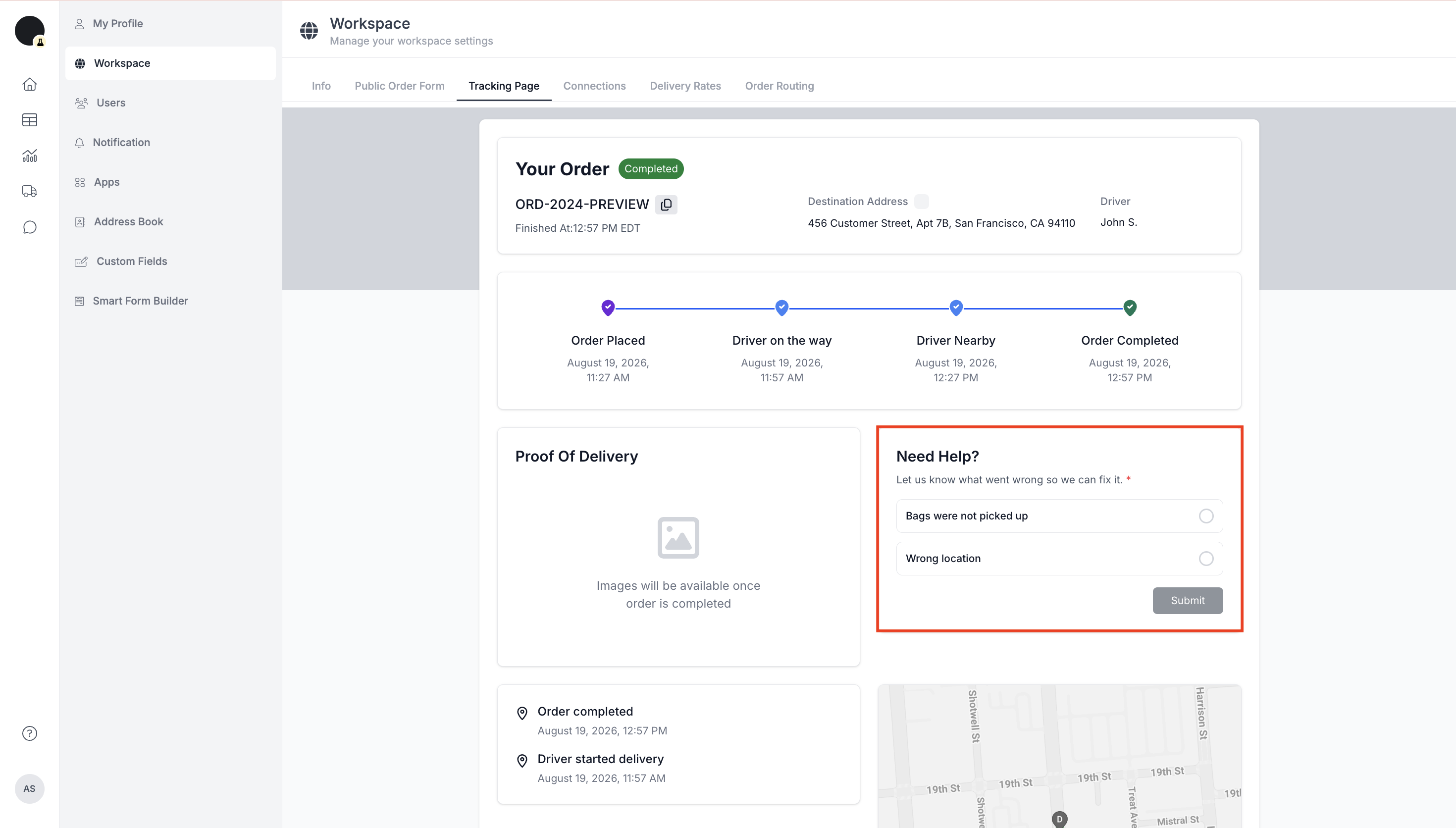
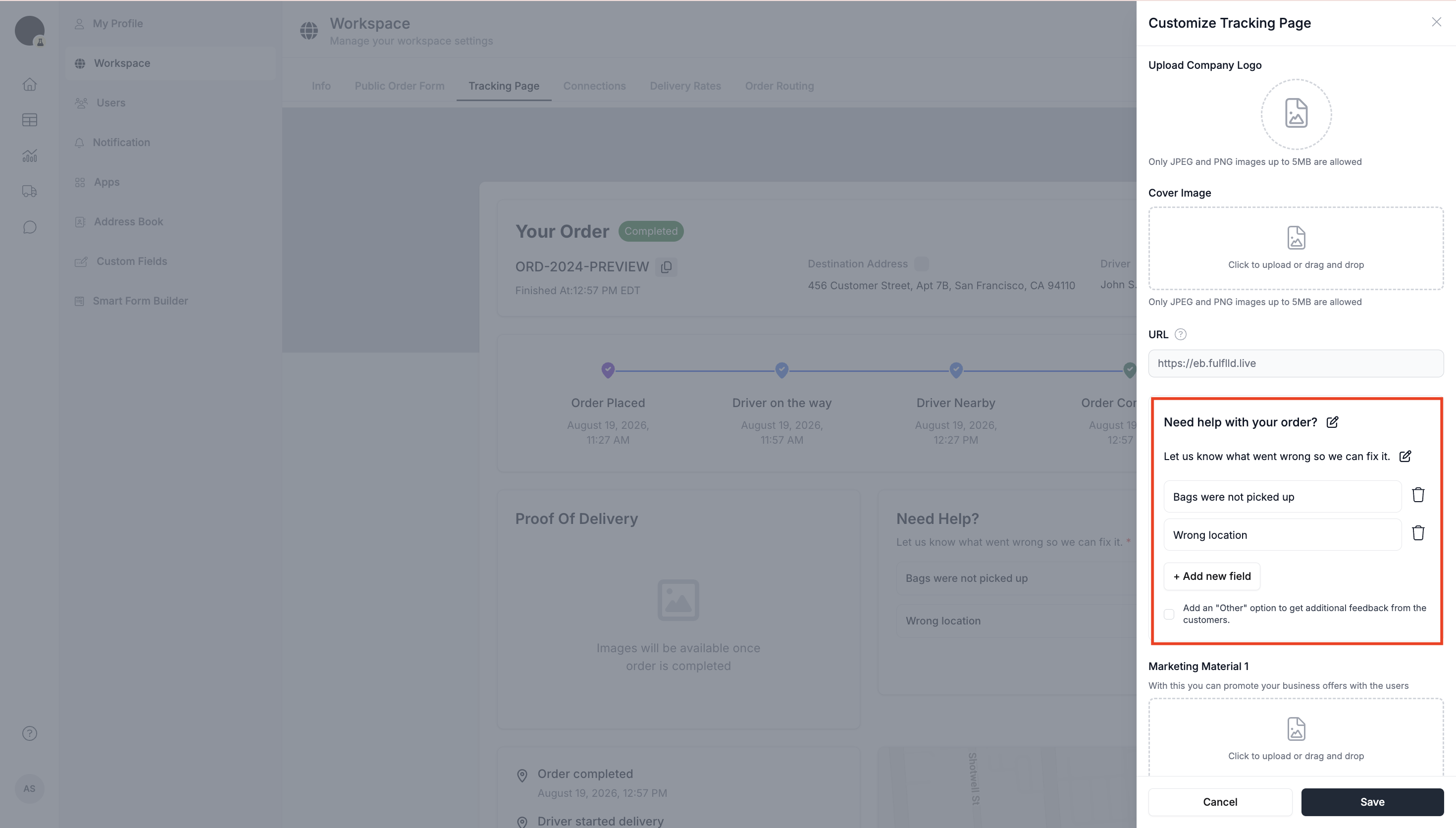
Before your team can report issues, you'll need to set up the list of issue topics dispatchers can choose from. In the Customize Tracking Page panel, find the Need help with your order? section. This is where issue topics are managed.
Click + Add new field to add a new issue topic. Type in the topic name (e.g., "Order wasn't delivered") and click Save. You can add as many topics as you need, and optionally enable the "Other" checkbox to let customers submit additional feedback beyond the listed topics.
Step 2: Report an issue from the order card
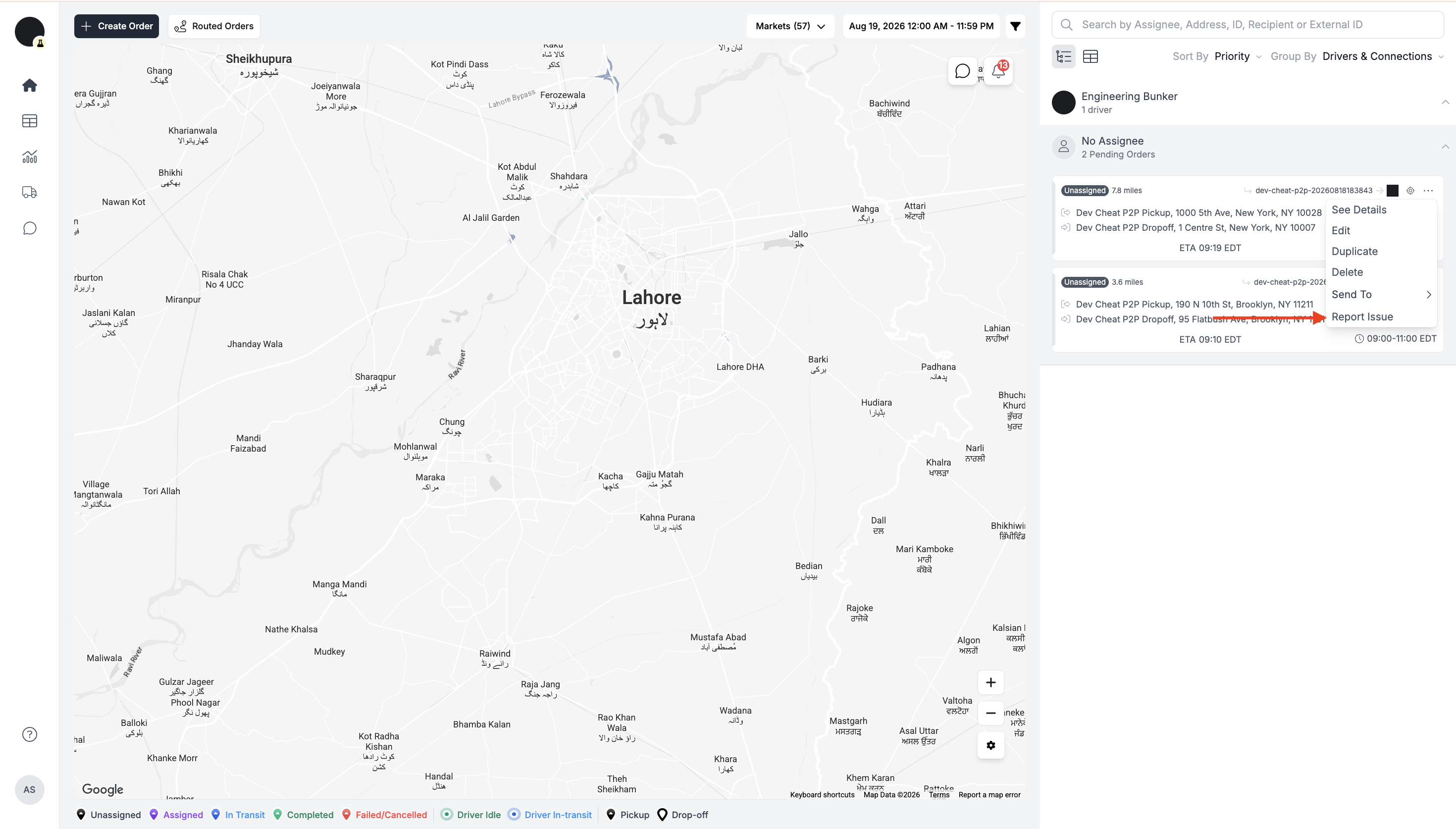
Once your issue topics are configured, you can report a problem on any order right from the map/list view. Find the order with the issue, click the (...) ellipsis menu on its order card, and select Report Issue from the dropdown.
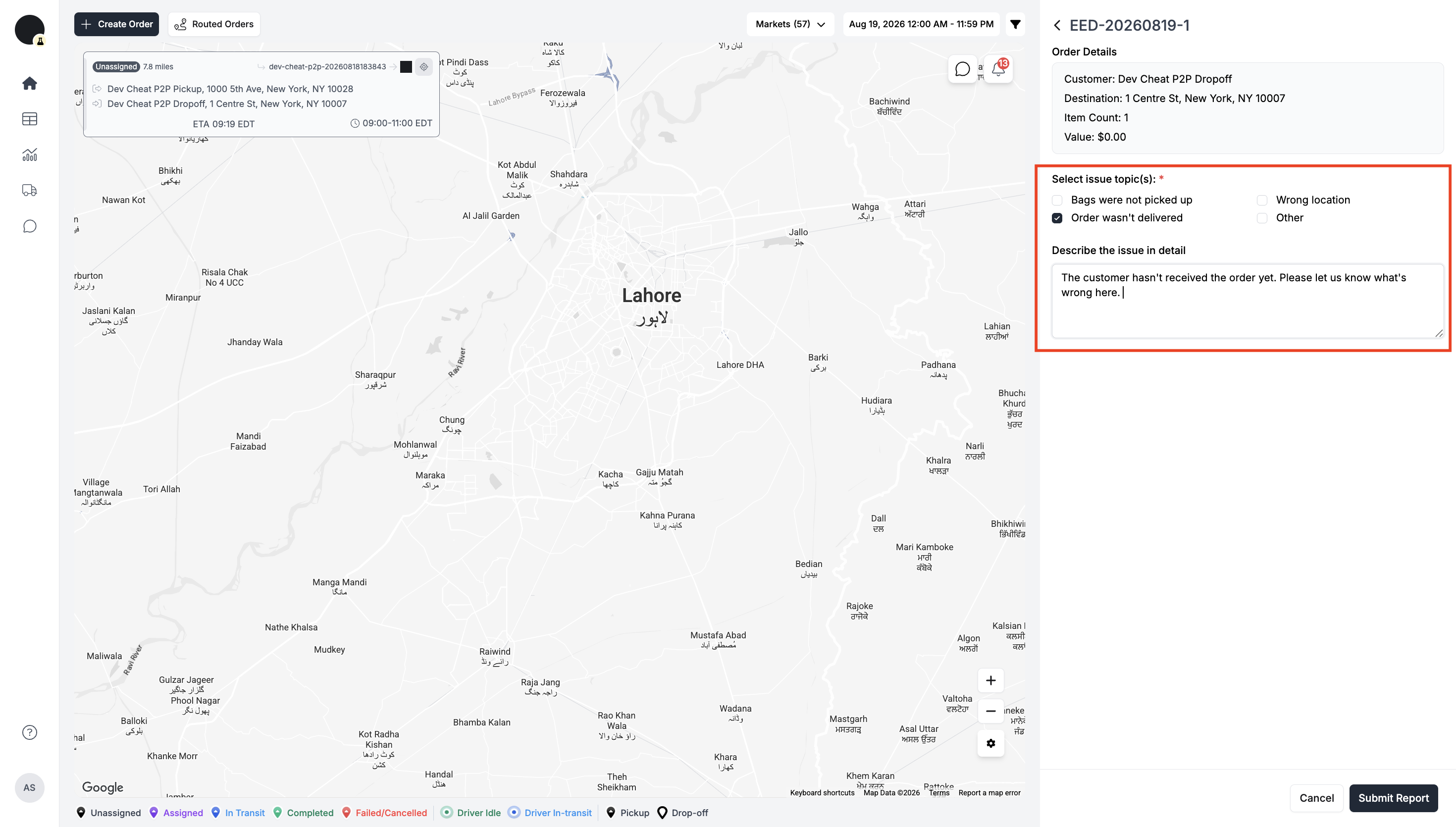
In the report issue panel, select the relevant issue topic(s) and, if needed, add a description in the Describe the issue in detail field. Once you've entered all the details, click Submit Report.
Step 3: What happens after an issue is reported
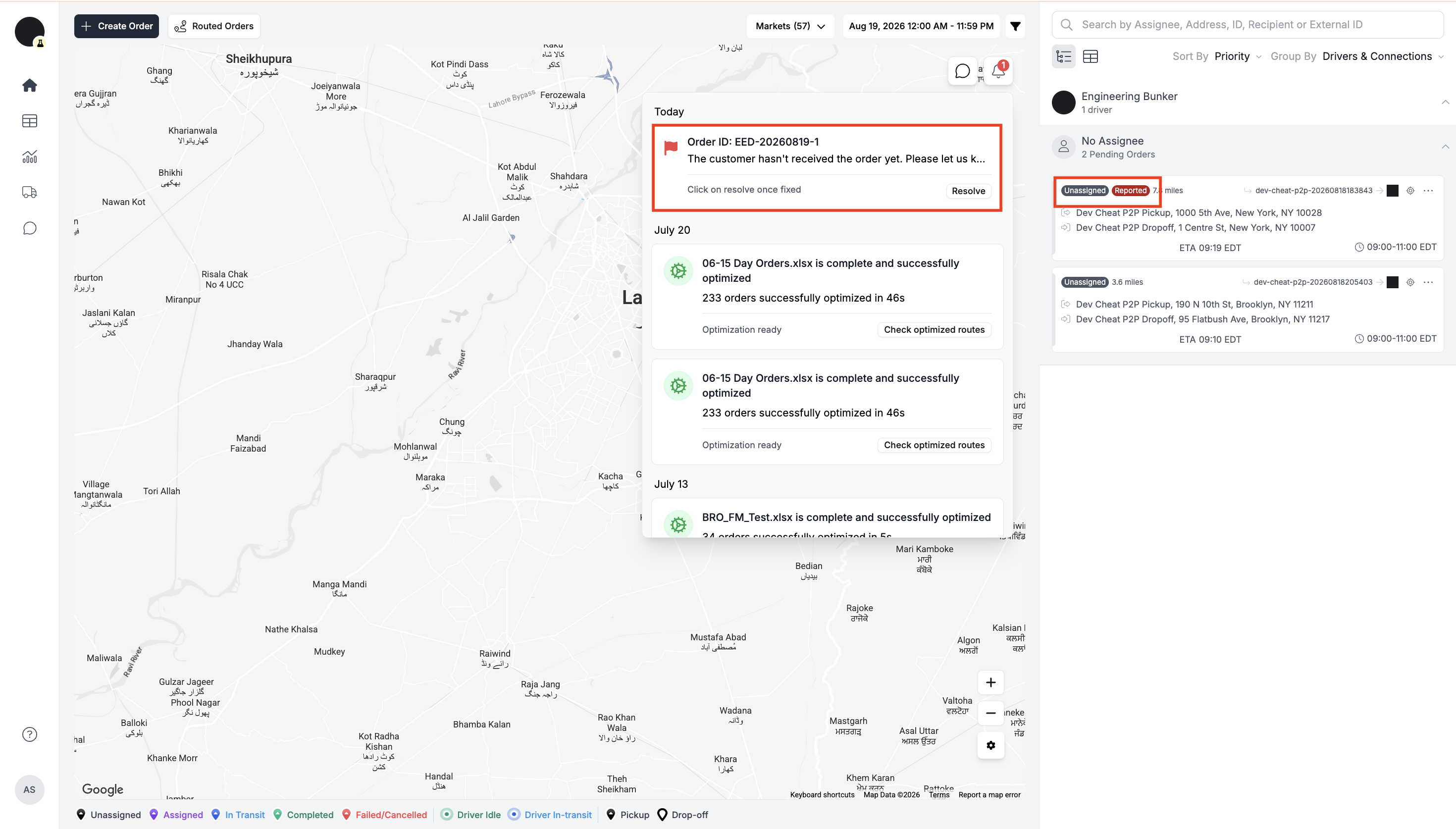
A Reported badge appears on the order card so it's immediately visible at a glance. A notification is triggered, alerting all dispatchers to the reported issue.
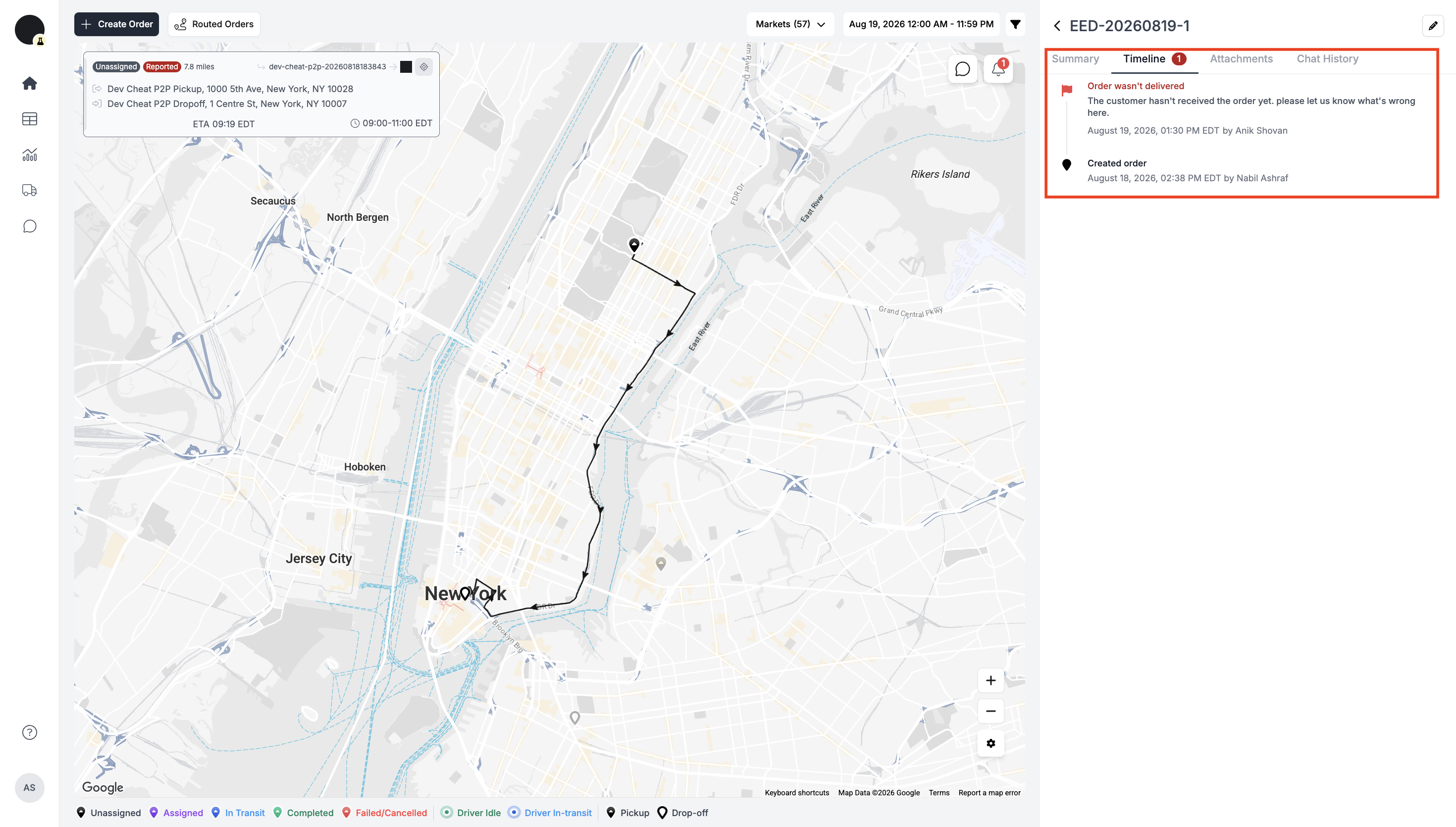
The issue is logged as an event in the order's Timeline tab, including the reporter's name and timestamp, for tracking and auditing purposes.
Important Notes
Important Notes
- At least one issue topic must be selected before a report can be submitted.
- The "Other" option, if enabled, gives customers a way to report issues not covered by your predefined topics.
- Every reported issue is permanently recorded in the order's Timeline, including who reported it and when — useful for auditing and resolving disputes later.
- Reported orders remain flagged until manually resolved from the order card.
Updated about 2 months ago