
Email Notification Setup Guide & Routed Tracking Link
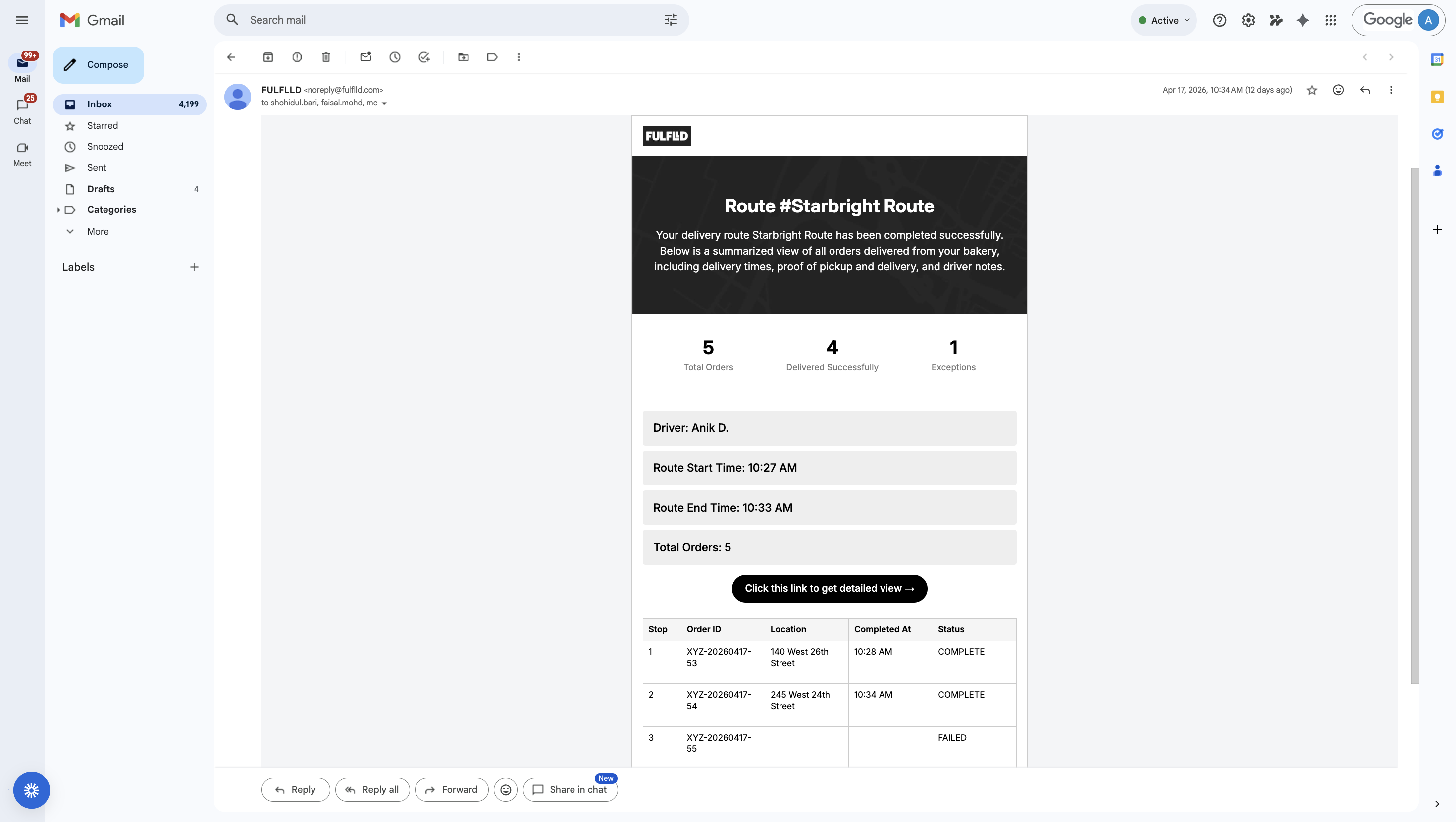
Email Notification allows users to automatically receive an email once a route is completed. The email includes a route summary and a link to view detailed route information, proof of delivery, stop-level attachments, and downloadable reports.
In this article, you will learn how to:
- Set up an email notification rule
- Configure recipients and markets
- Understand what is included in the email and detailed route view
Create an Email Notification Rule
-
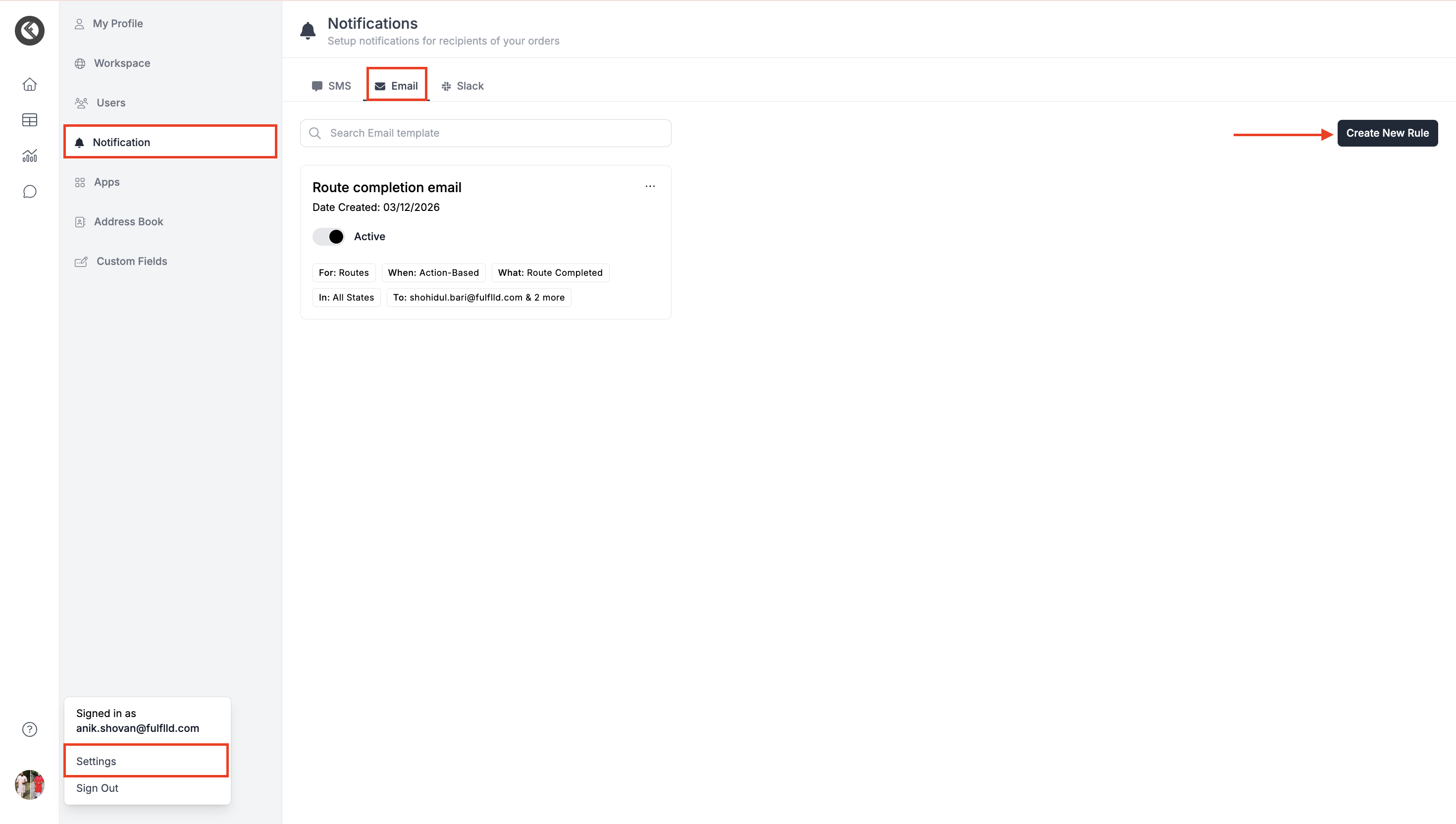
From the left navigation menu, go to Notifications → open the Email tab → click Create New Rule.
-
Fill in the required details to configure the rule & save.
Name: Add a clear name for the email notification rule
Notification For: Set to Routes (email notifications are only sent for completed routes)
When (Notification Type): Action-based notification
What (Trigger Event): Sent when the route is completed
In (Market): Select the applicable market
Recipient (Email Addresses): Enter the email address(es)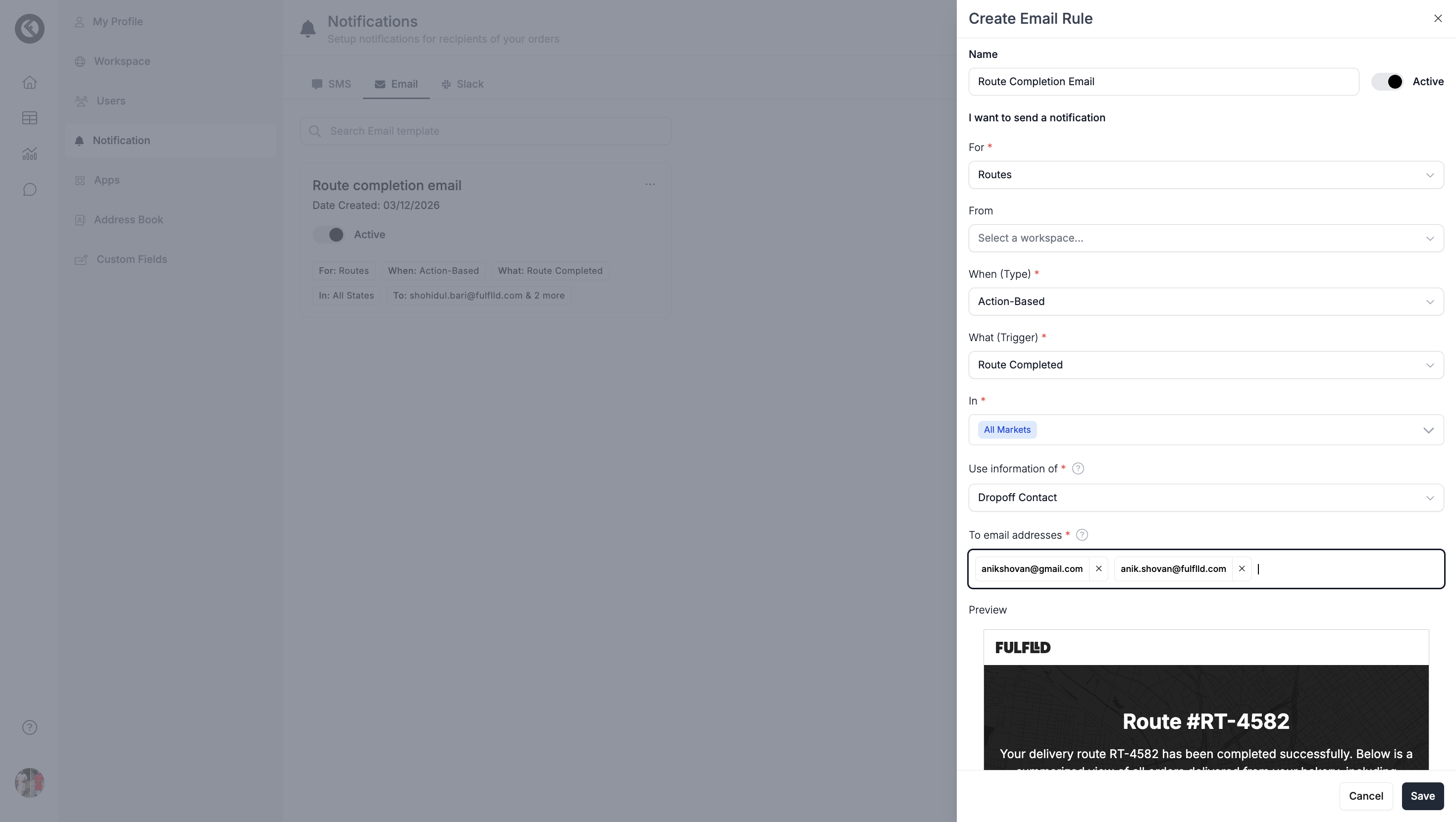
-
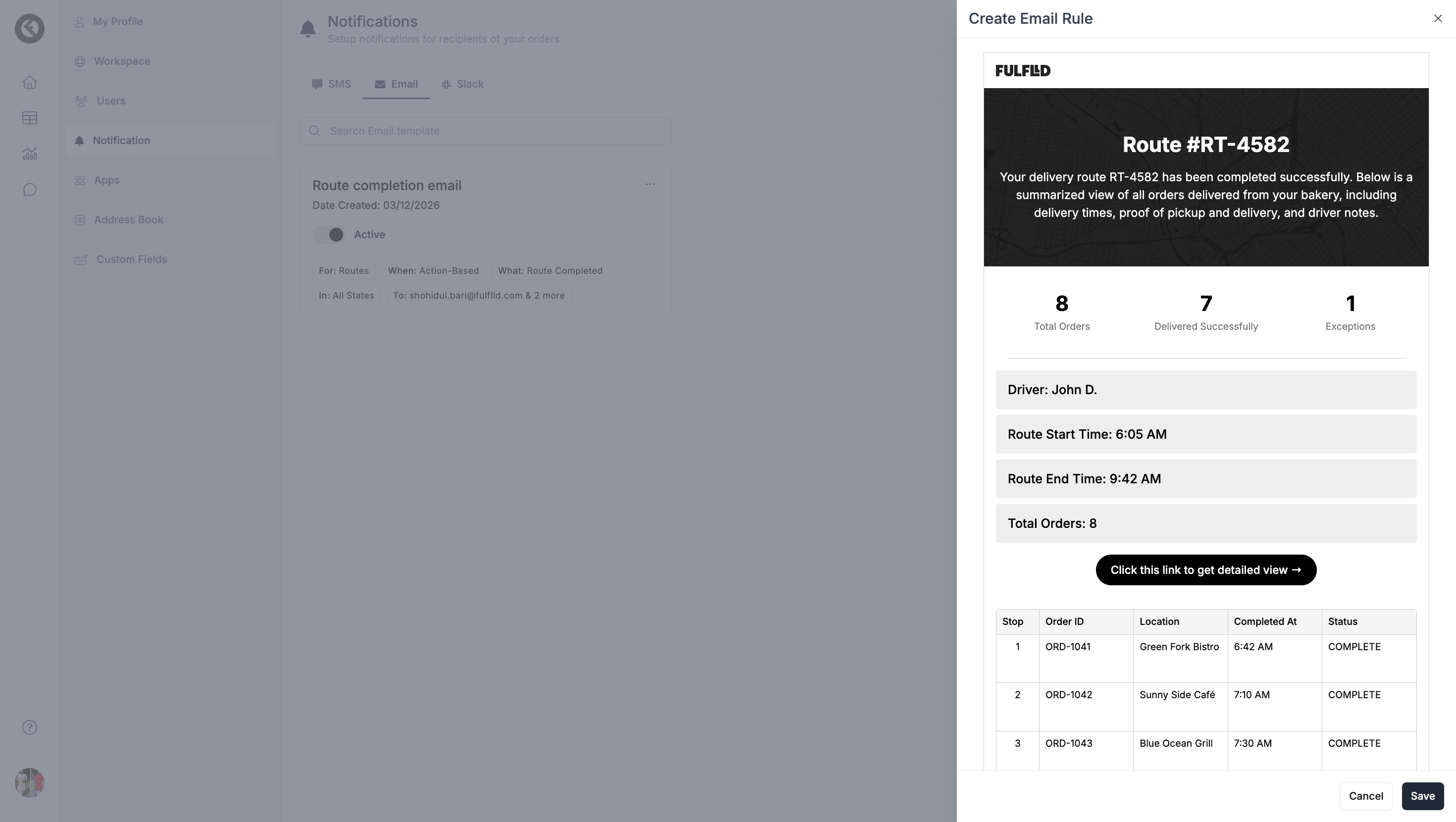
Once configured, review the email preview (includes a link to view the detailed route report) and click Save to activate the rule.
-
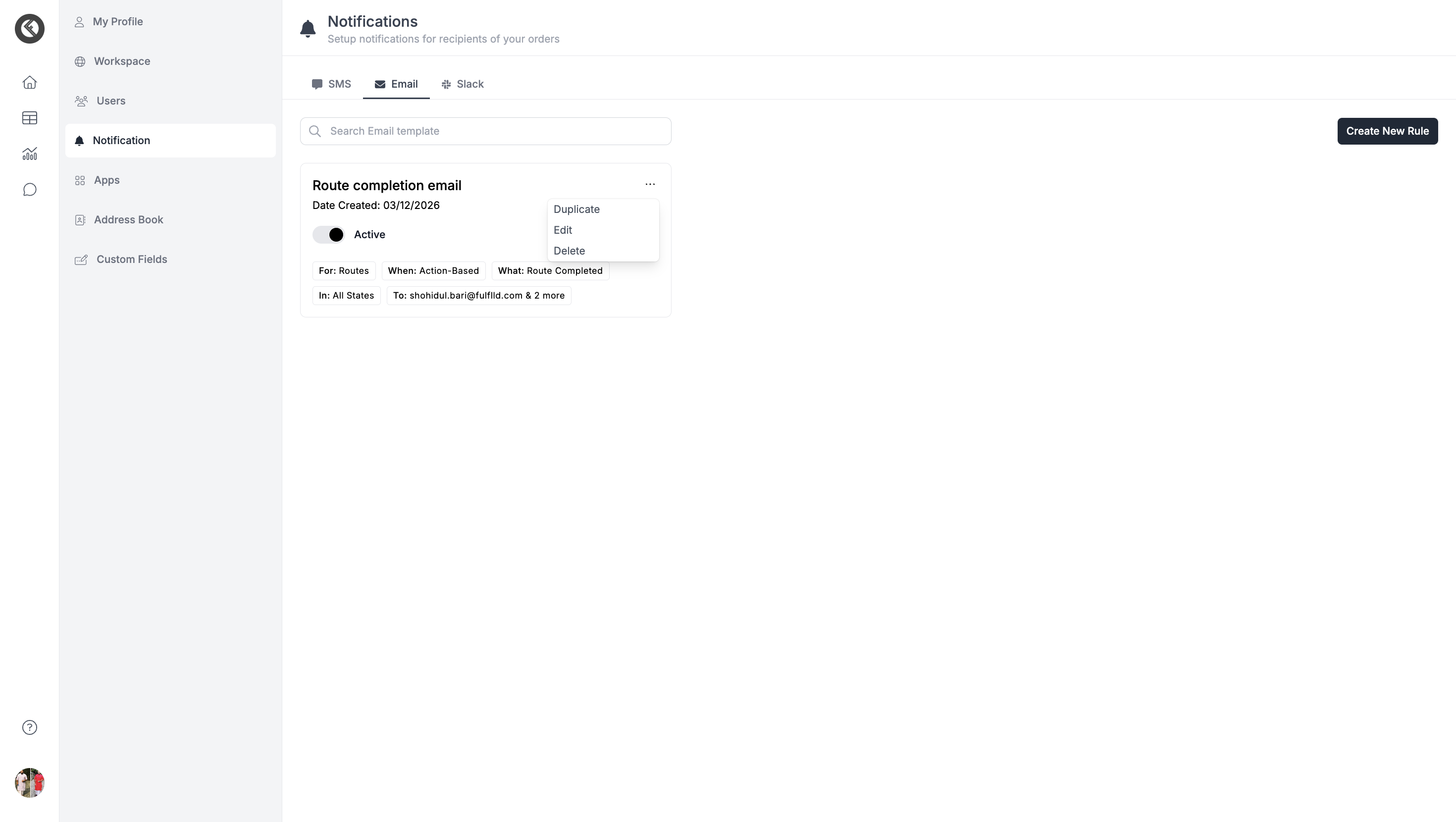
Once saved, you should see the email notification logic card with all the conditions. You can Duplicate, Edit or Delete logic as per your preference.
What Happens After a Route Is Completed
-
Once a route is completed, the system automatically sends an email notification to the configured recipients. The email includes a button/link “Click this link to get the detailed view” which takes the user to the routed order details page.
What Users Can See in the Detailed View
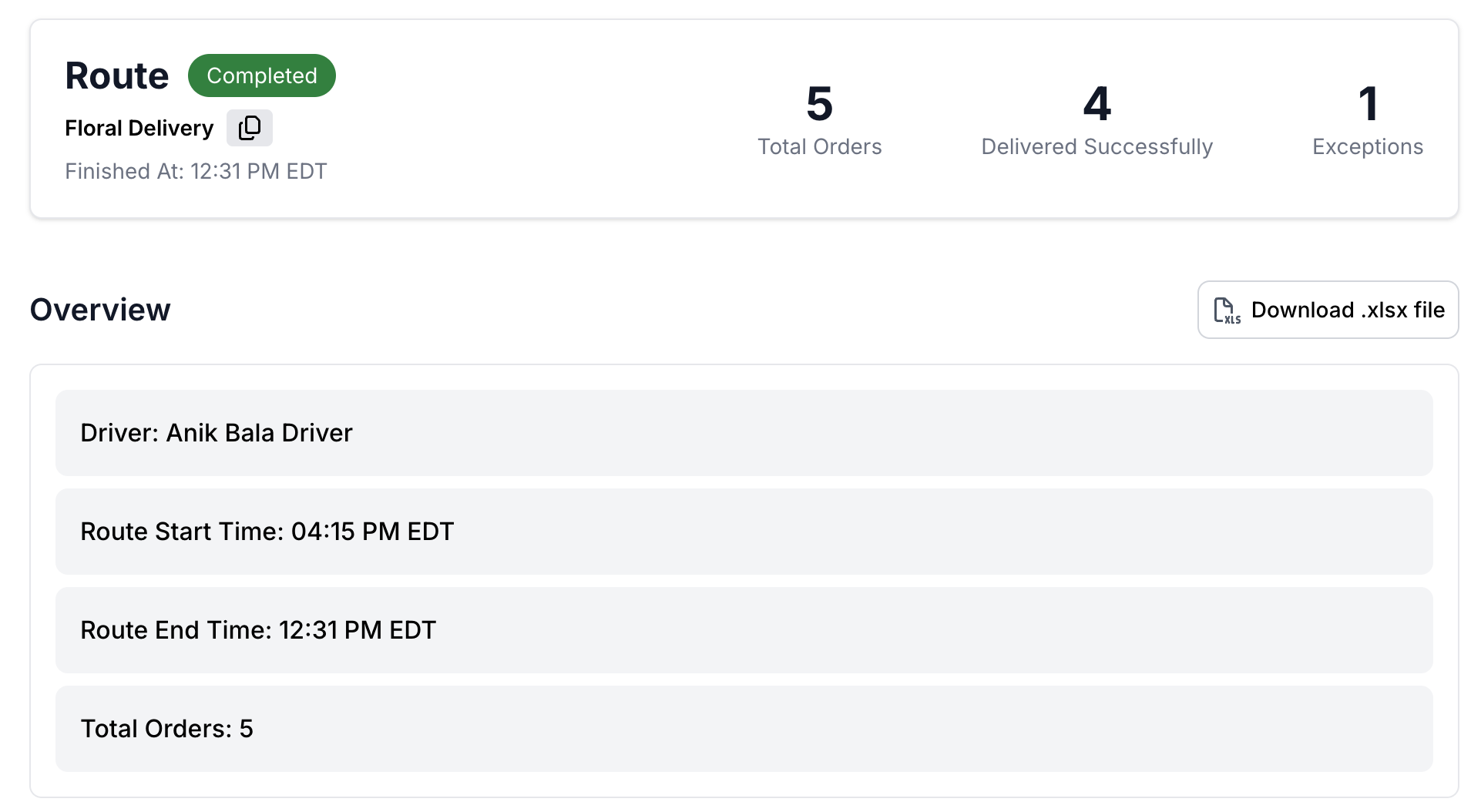
- Overview & report download: summary of the completed route and option for downloading the report
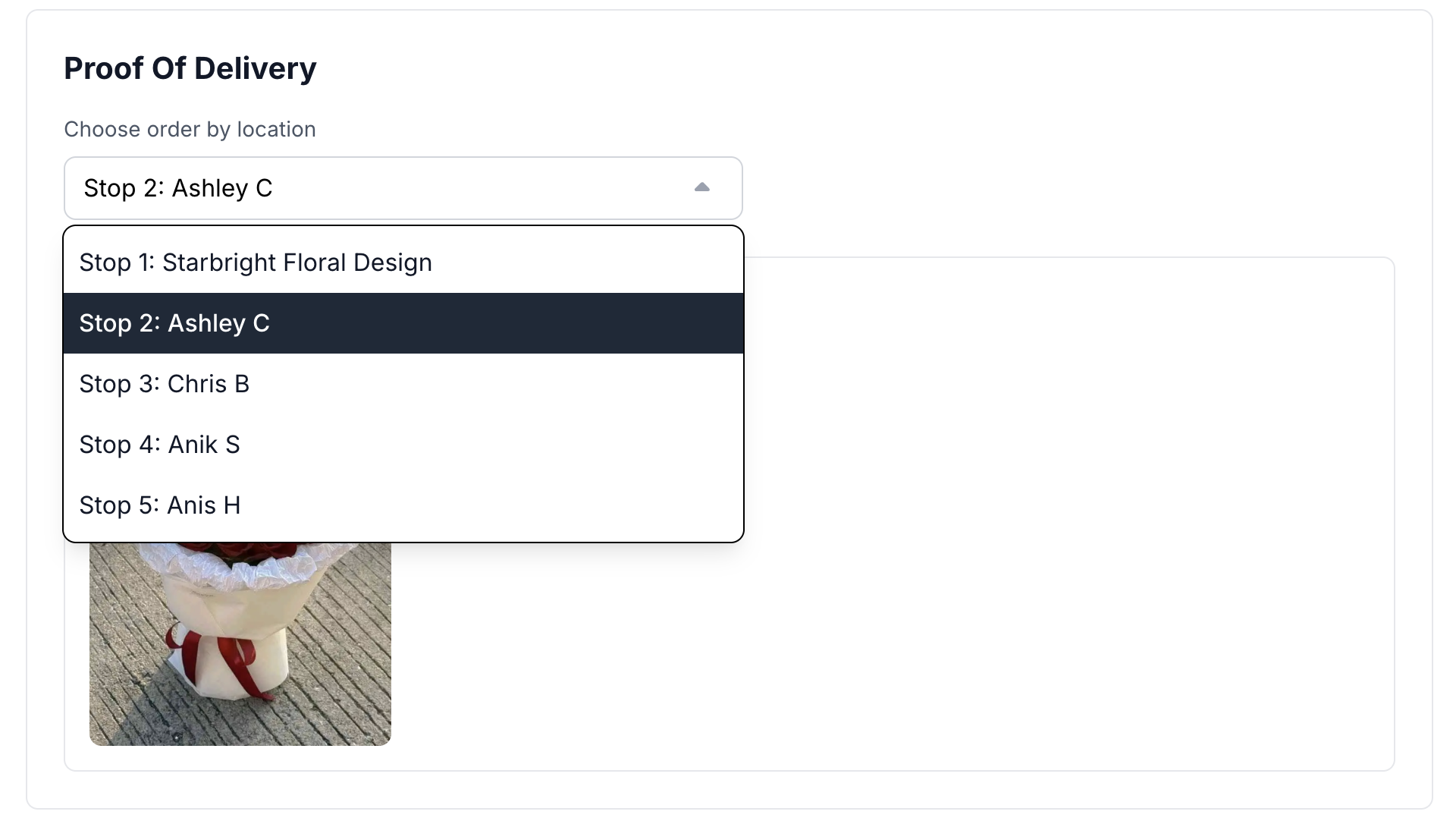
- Proof of Delivery: select stops from the dropdown View attachments for each stop
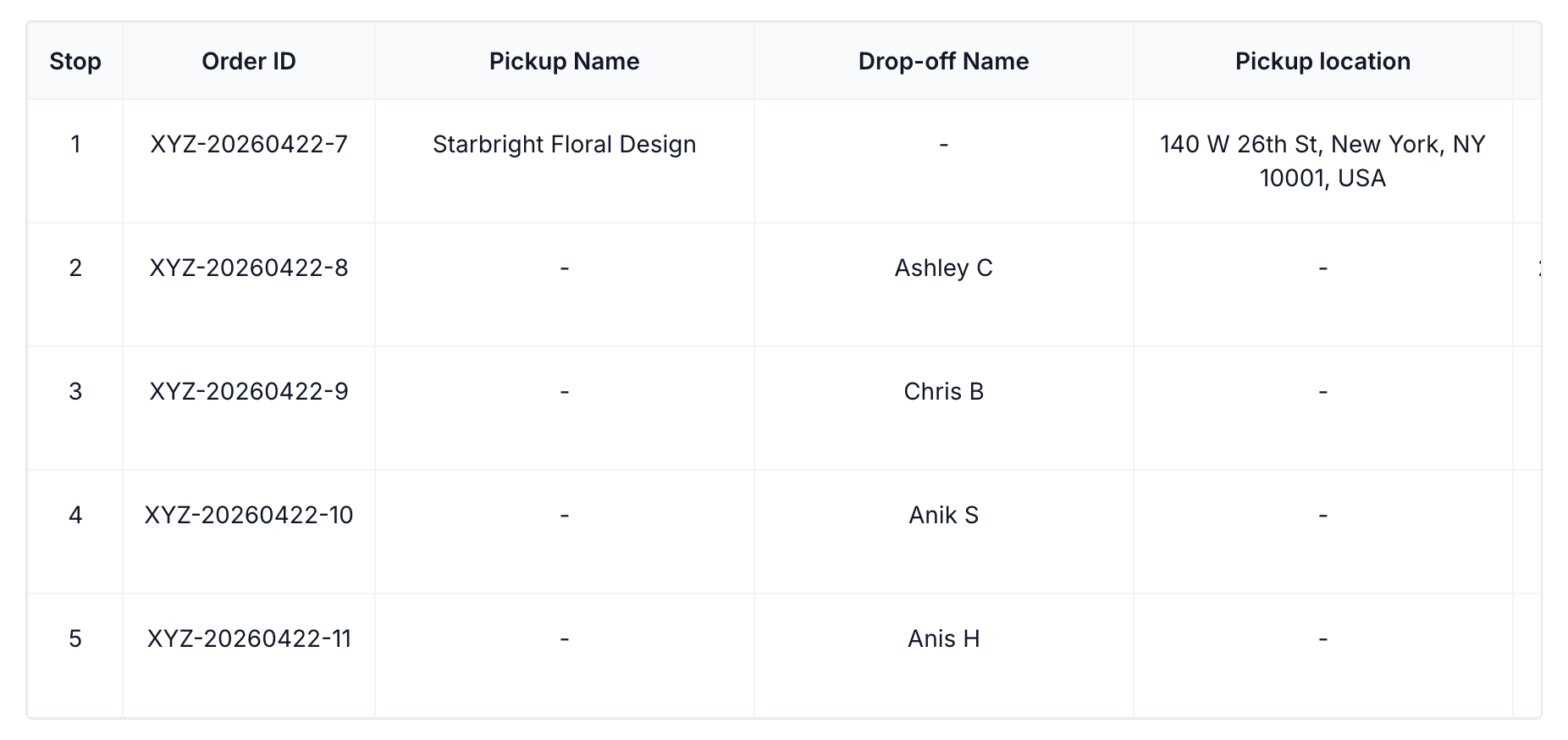
- Route Details Table: Full table view of all route and stop-level details
Also, sharing the sample routed tracking link here for a quick view, https://fi.fulflld.live/t/r/69e8f6f0530c0ddd69184d33
Important Notes
- Email notifications are only available for Routes
- Emails are triggered only when a route is marked as Completed
- Ensure correct market selection while creating the rule
- Double-check recipient email addresses to avoid delivery issues
- Exceptions include failed or canceled orders
- Proof of delivery attachments depend on the selected stop
- Reports can be downloaded in .xlsx format for further analysis
Updated 5 months ago