
Conversation (Mobile App): Chat, Calls & Support
The Conversation feature allows drivers to communicate with dispatchers directly from the mobile app. Drivers can view messages, reply to chats, make calls, send voice messages, and share photos when needed.
In this article, you will learn how to:
- Access conversations from the mobile app
- View general and order-specific chats
- Reply to dispatcher messages
- Start/Receive a call
- Send voice messages
- Send photos in chat
- Contact support from an order
Access Conversations from the Home Screen
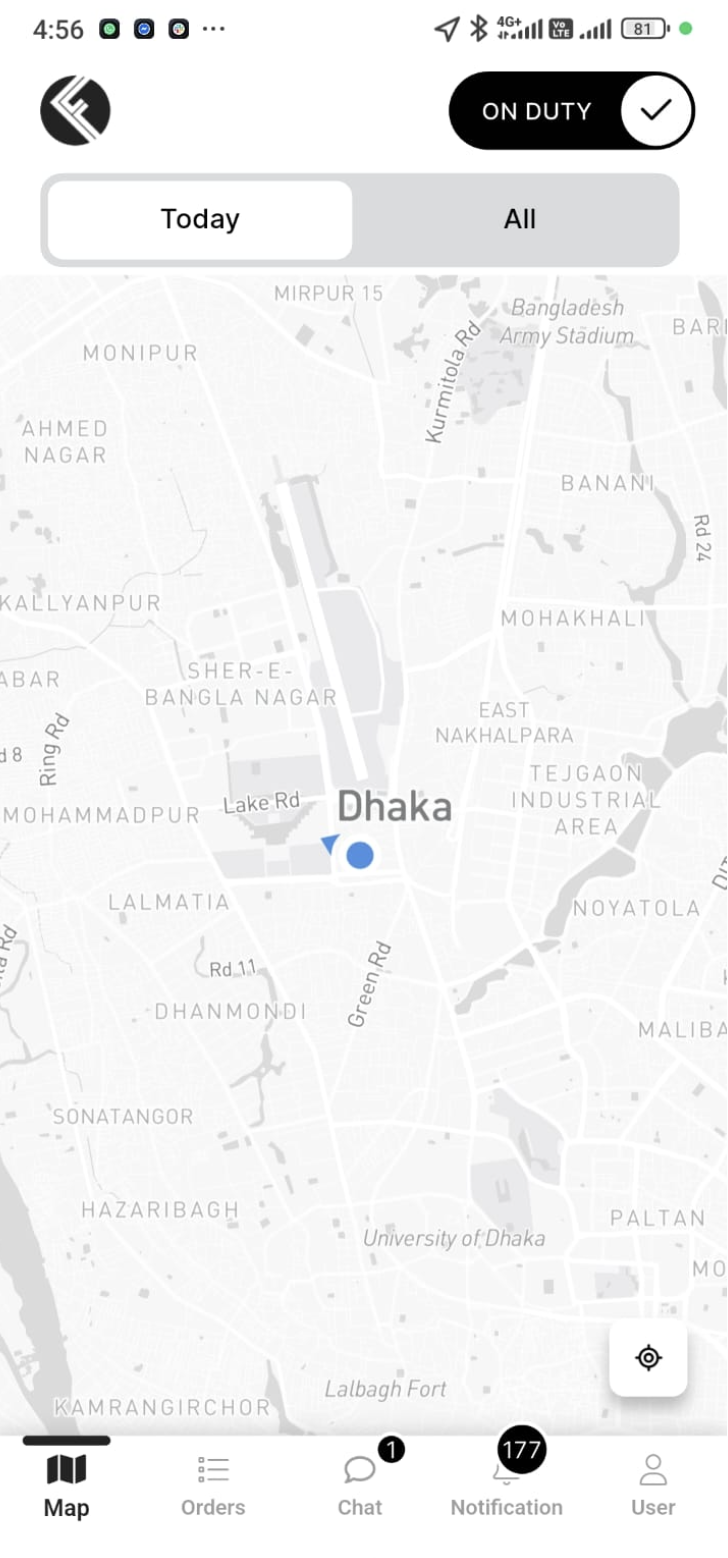
When drivers open the mobile app, they will see the Chat icon in the middle of the screen. If there are new messages, a numbered badge will appear on the icon. Tapping the icon takes the driver to the Inbox.
View Chats from Inbox
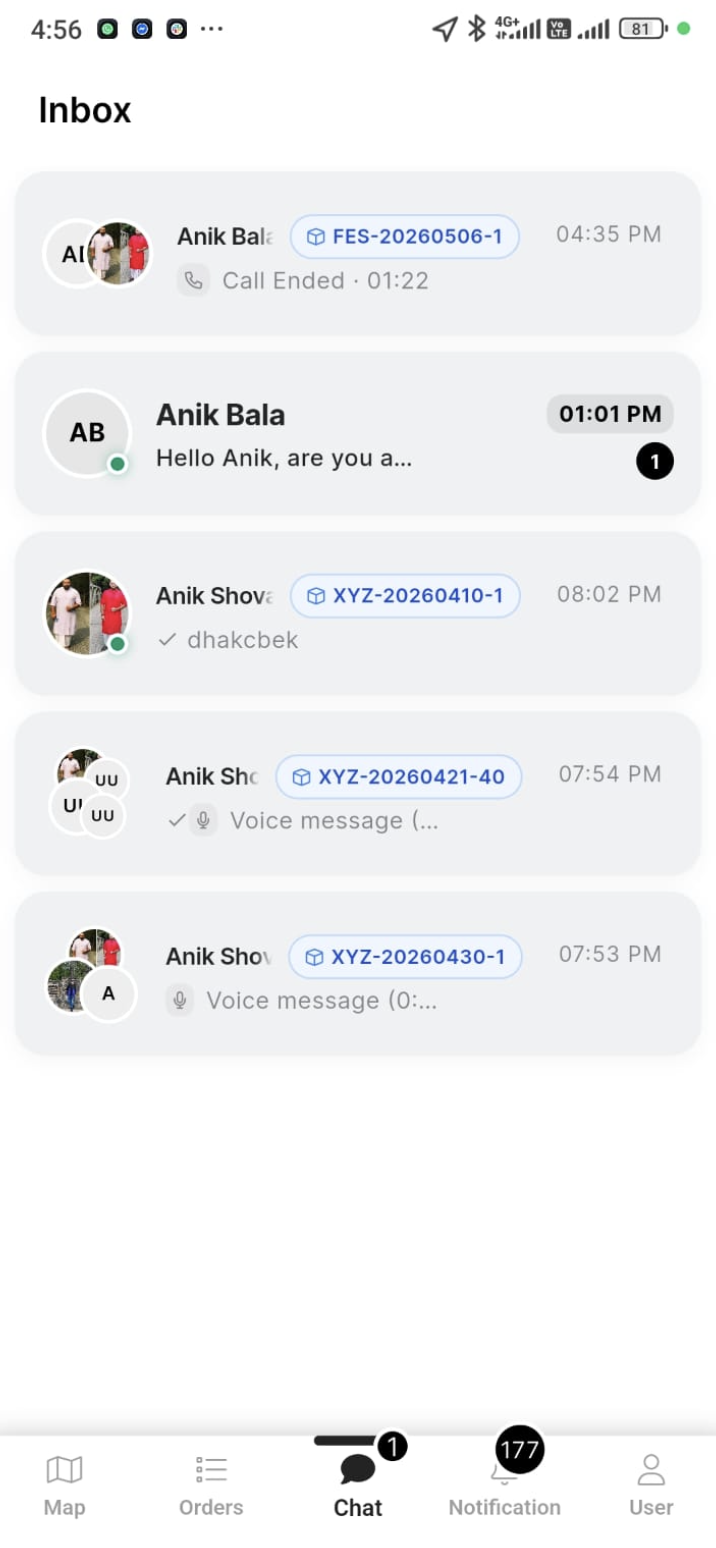
In the Inbox, drivers can see all conversations in one place. General chats appear as regular conversations, while order-specific chats include the related order number for easy identification. Drivers can tap any conversation to open and continue the chat.
Start/Receive a Call
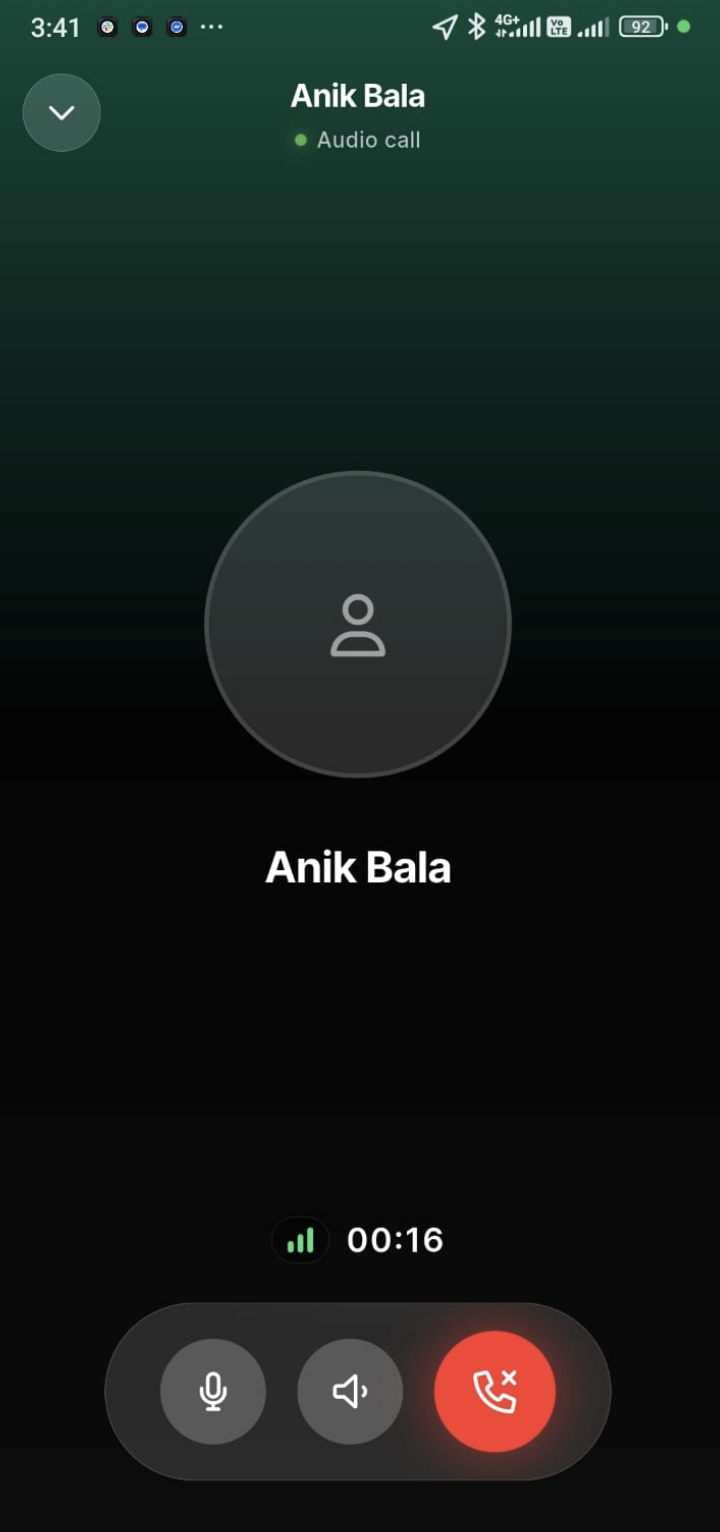
Inside a conversation, drivers can tap the Call icon at the top of the screen to initiate a voice call with the dispatcher.
Send a Voice Message and attachment
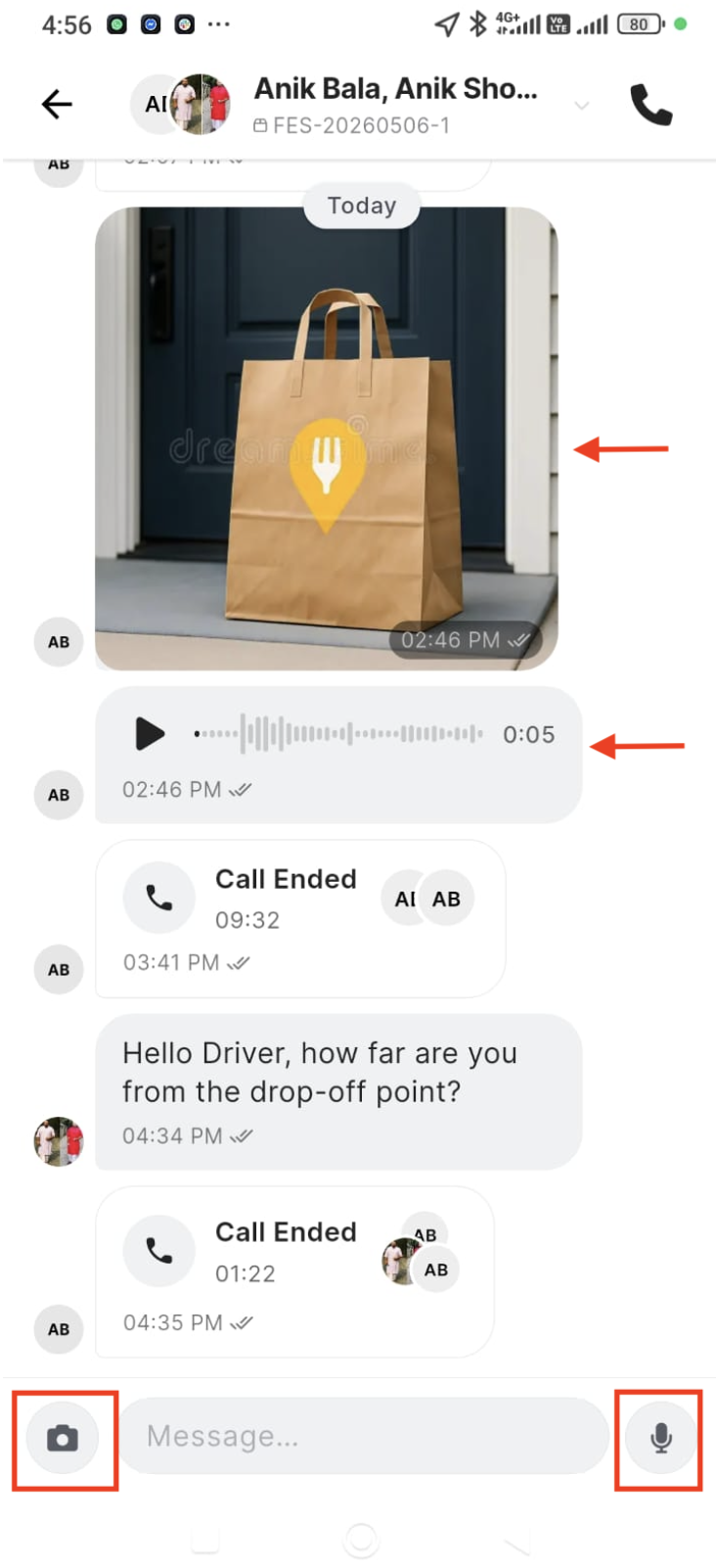
Drivers can use the microphone to send voice messages and the camera to capture and share photos directly in chat for quick updates or proof.
Contact Support from an Order
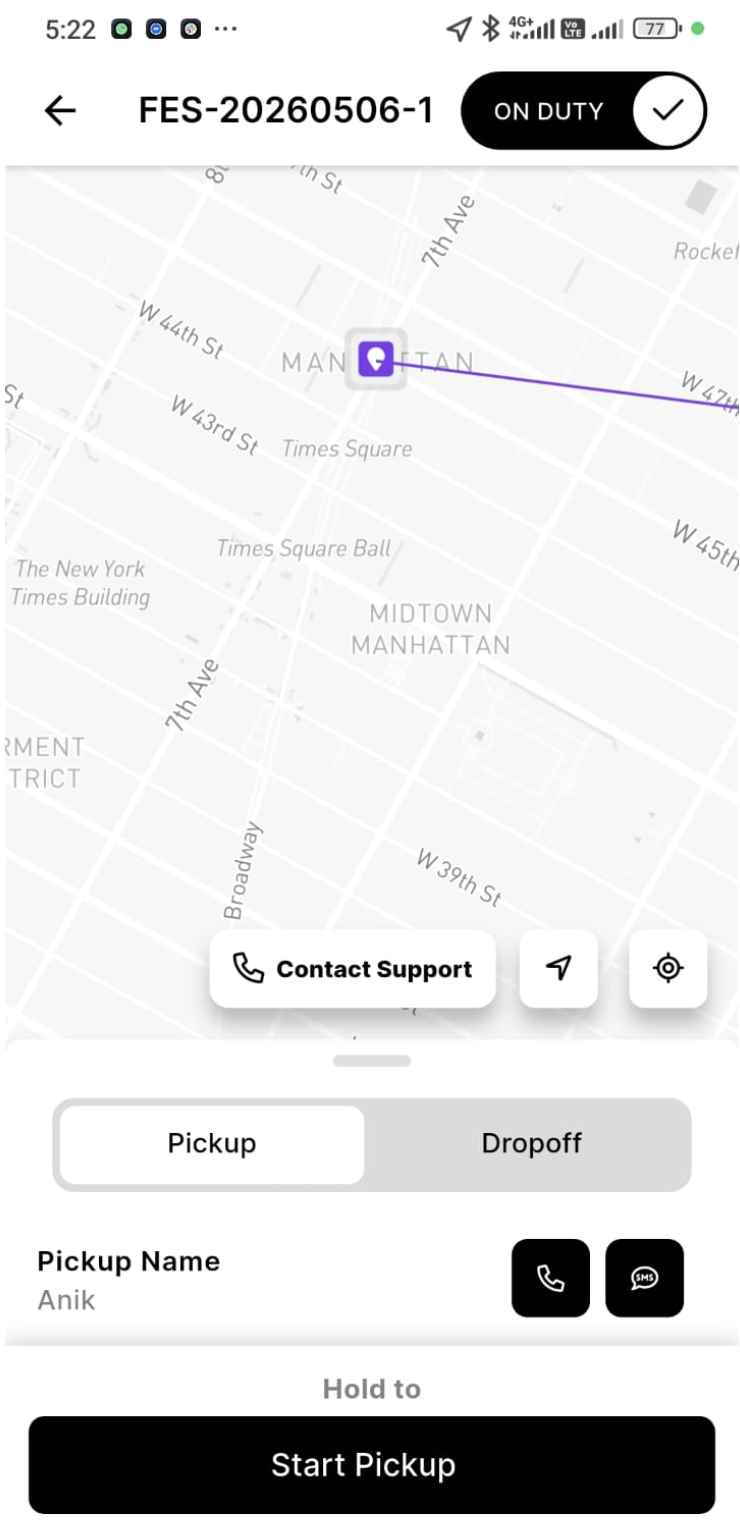
To start an order-specific conversation, drivers can open the order and tap Contact Support. This takes them directly to the chat for that order, where they can contact the dispatcher for help or updates.
Important Notes
- A black numbered badge on the chat icon indicates new or unread messages.
- Order-specific chats are labeled with order numbers for easy identification.
- Calls can be initiated directly from within any conversation.
- Voice messages and photos help communicate faster in real-time scenarios.
- “Contact Support” always routes to the correct order-specific chat with the dispatcher.
Updated 5 months ago