
Conversation (Web App): Chat, Calls & Collaboration
The Conversation feature allows dispatchers to communicate with drivers directly from the web app. You can send messages, make calls, share voice notes, attachments and manage conversations — all in real time.
In this article, you will learn how to:
- Start a general conversation with a driver
- Start an order-specific conversation
- Make a voice call
- Send a voice message and attachments
- View chat history
- Add participants and manage group conversations
Access Conversations from the Dispatch Page
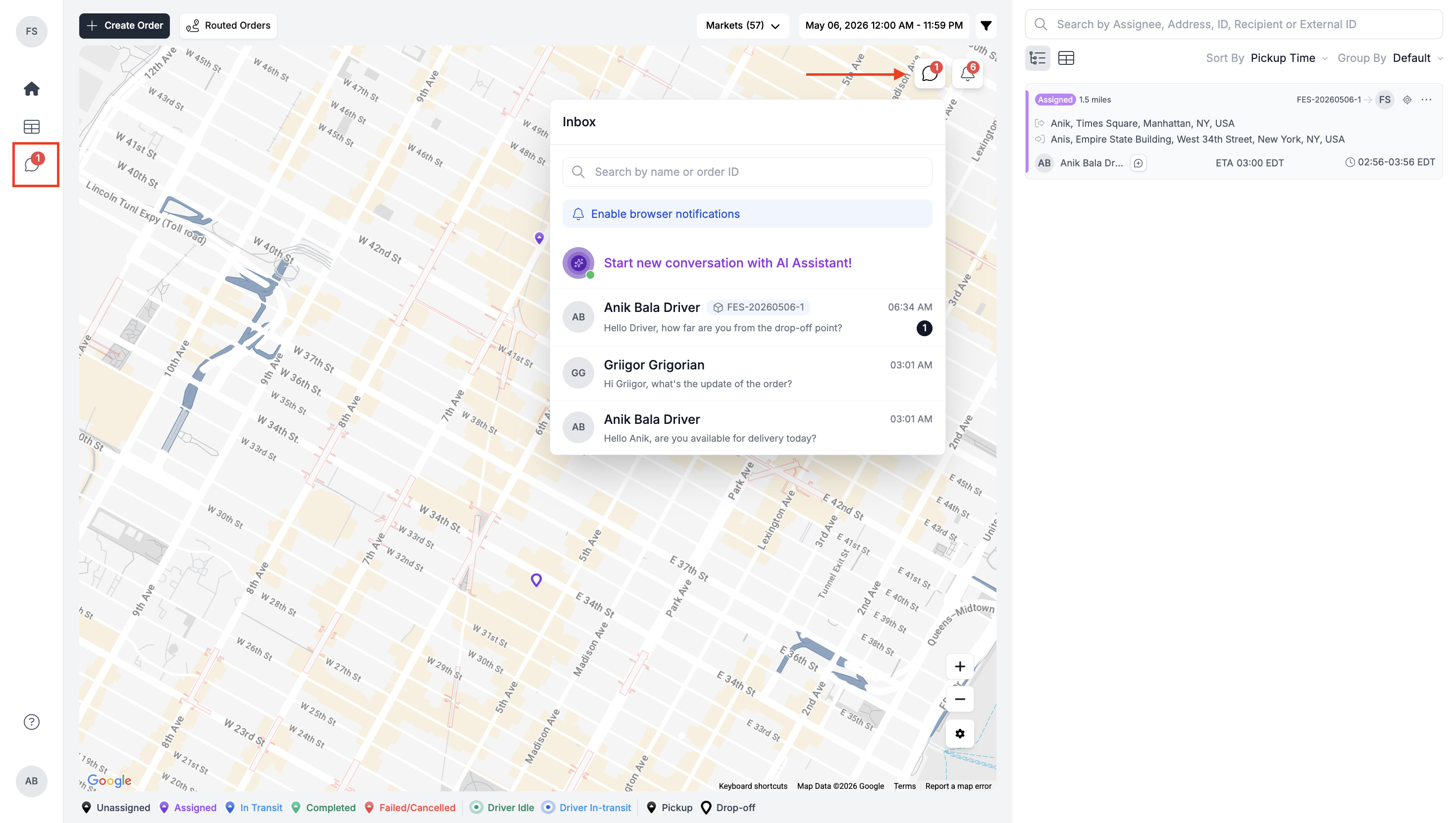
Go to the Dispatch page and click the Conversation icon on top of the map. This opens a panel where you can search for drivers and quickly access or continue existing conversations. A red badge will appear on the icon when new messages arrive.
Start a General Chat from Inbox
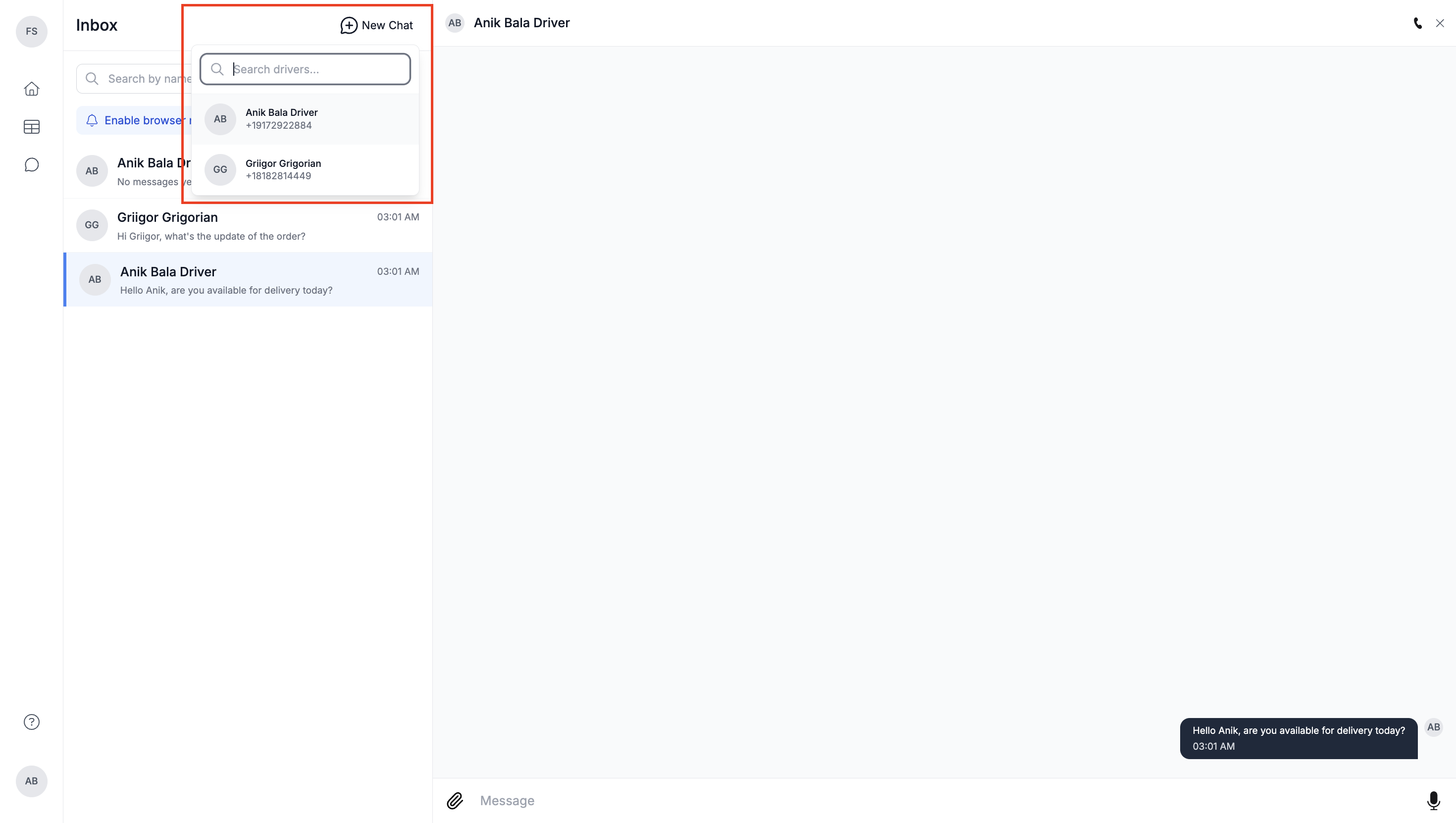
Navigate to Inbox from the left sidebar to access all conversations in one place. Click on New Chat, search for the driver’s name, and start the conversation. You can also revisit any previous chats from this view, making it the central place for managing general communication with drivers.
Start a Chat from an Order Card
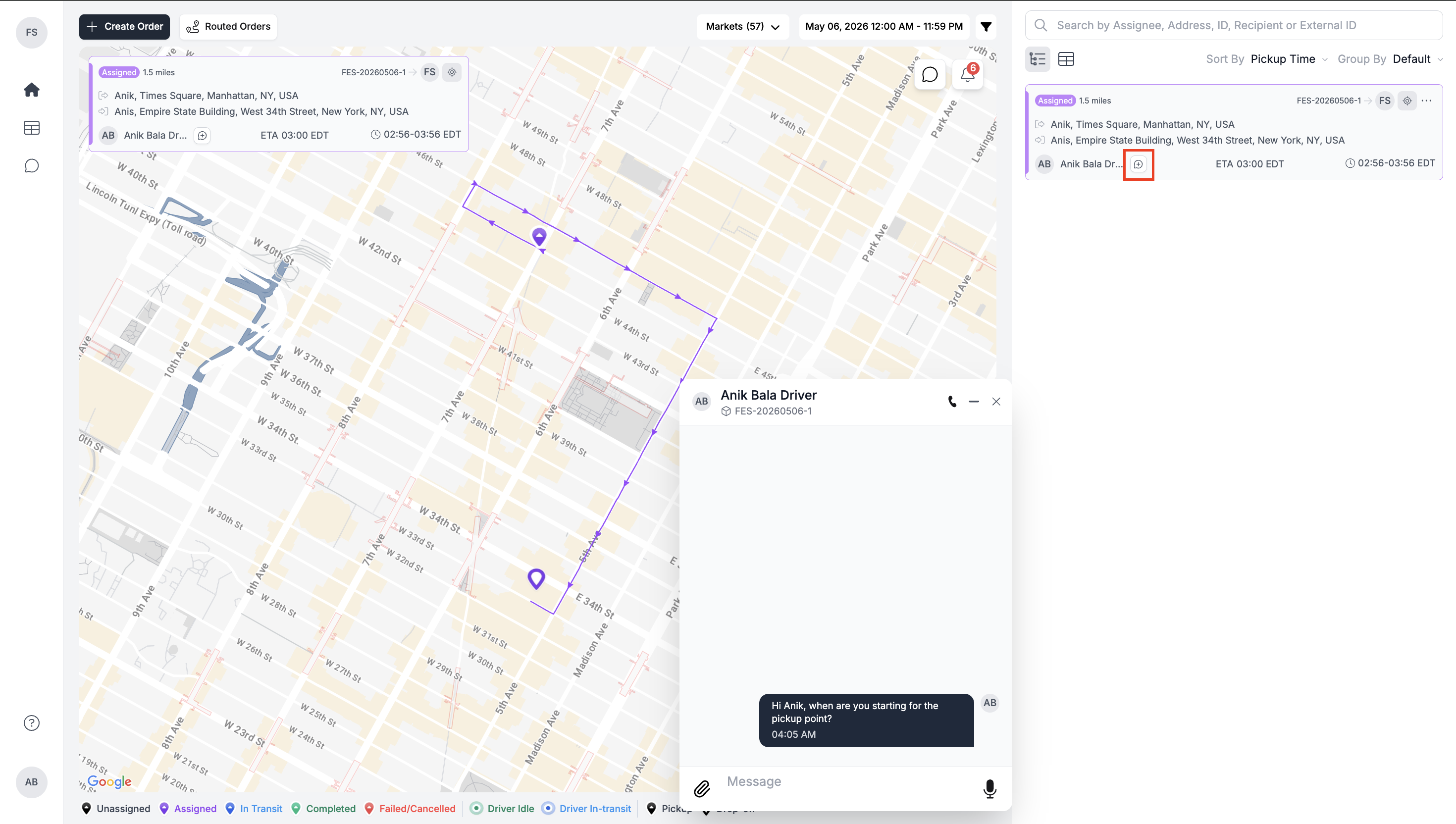
From the Dispatch page, locate the order in the order panel and click the plus (+) icon next to the assigned driver’s name. This will instantly open a chat box where you can start an order-specific conversation with the driver, making it easier to communicate in context of that order.
Send a Message from Order Details
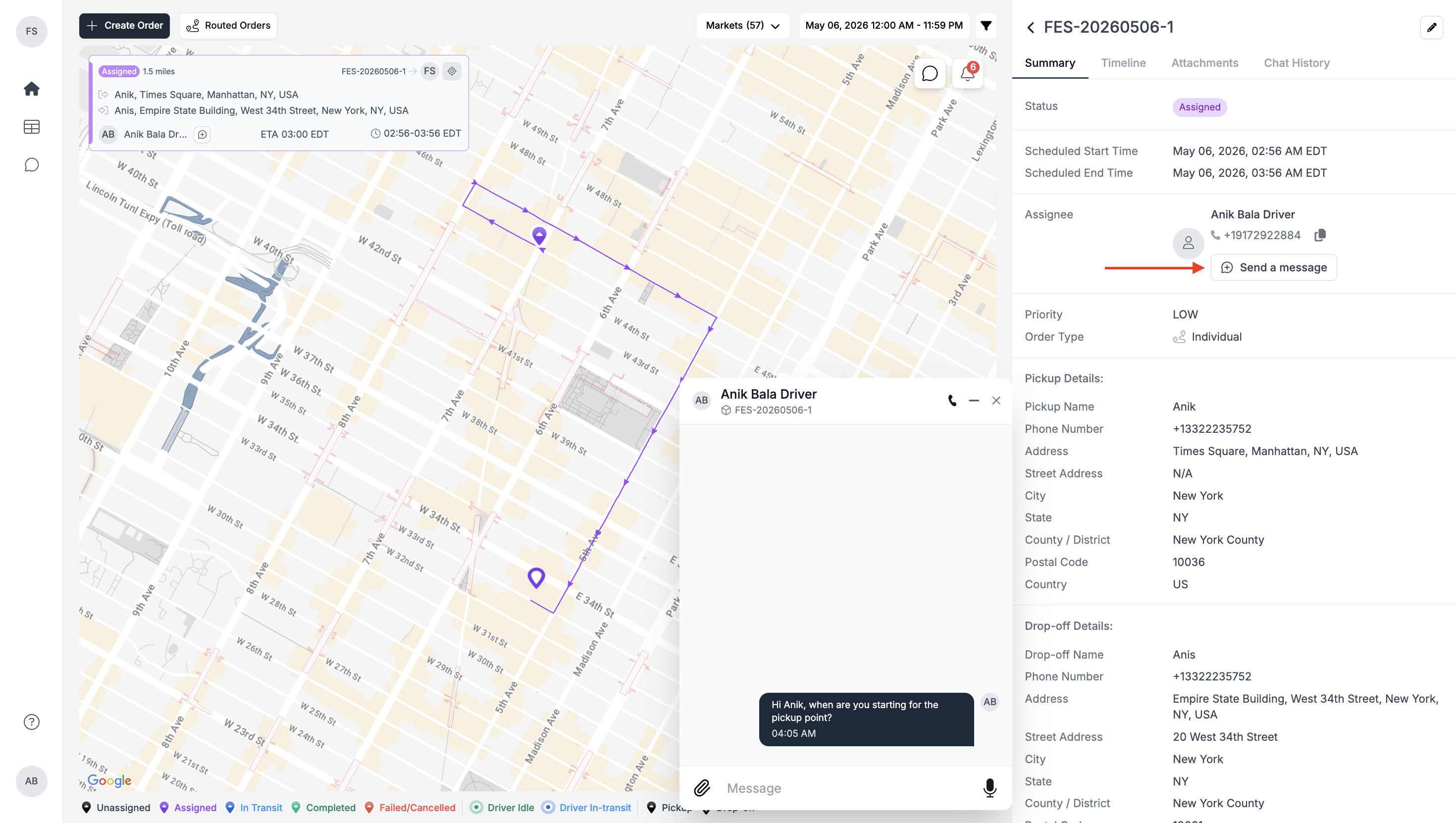
Open any order and go to the order details view. Under the assigned driver section, you’ll find a Send Message option. Clicking this will open the chat interface, allowing you to message the driver directly while staying within the order context.
Start a Voice Call
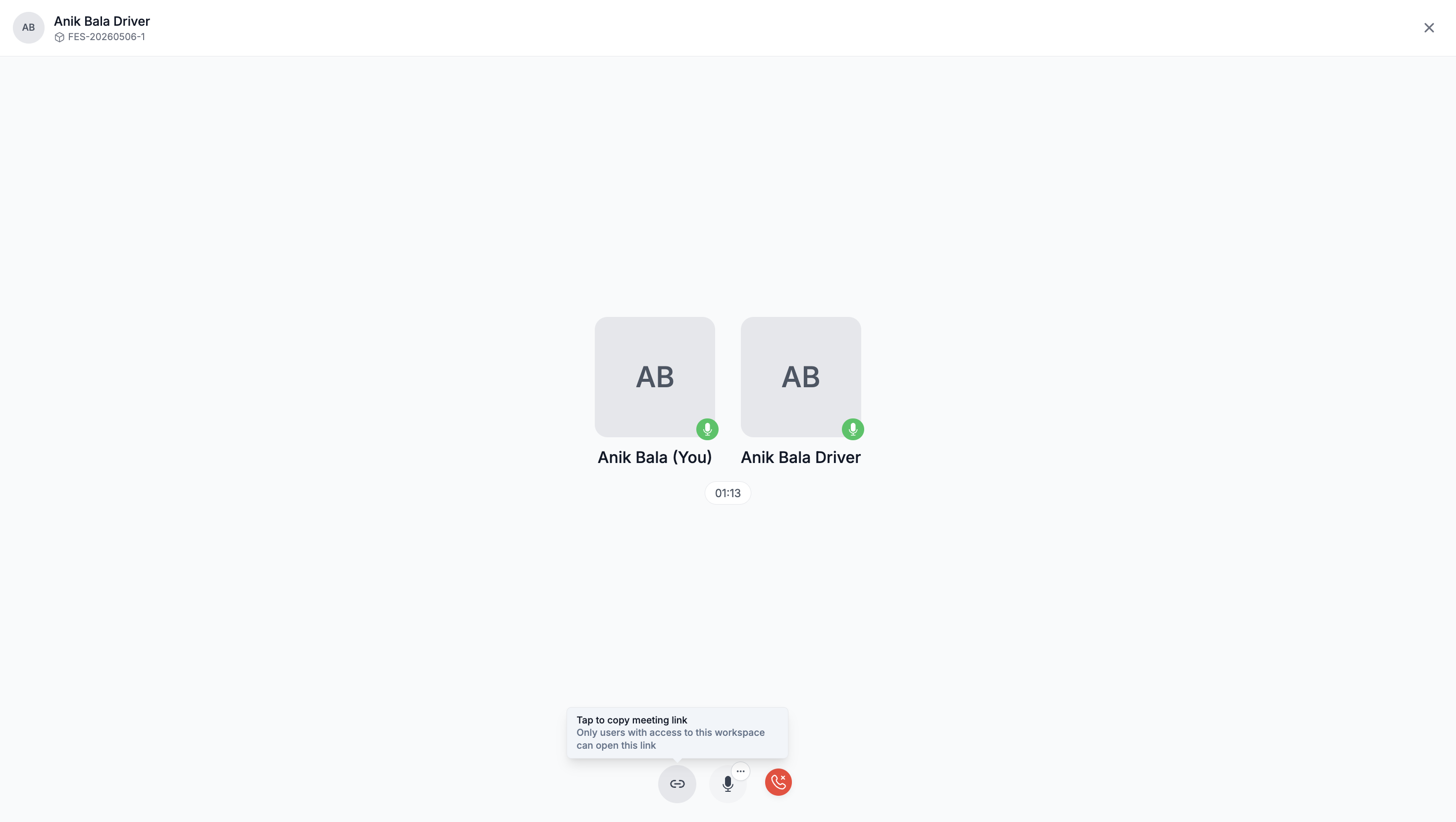
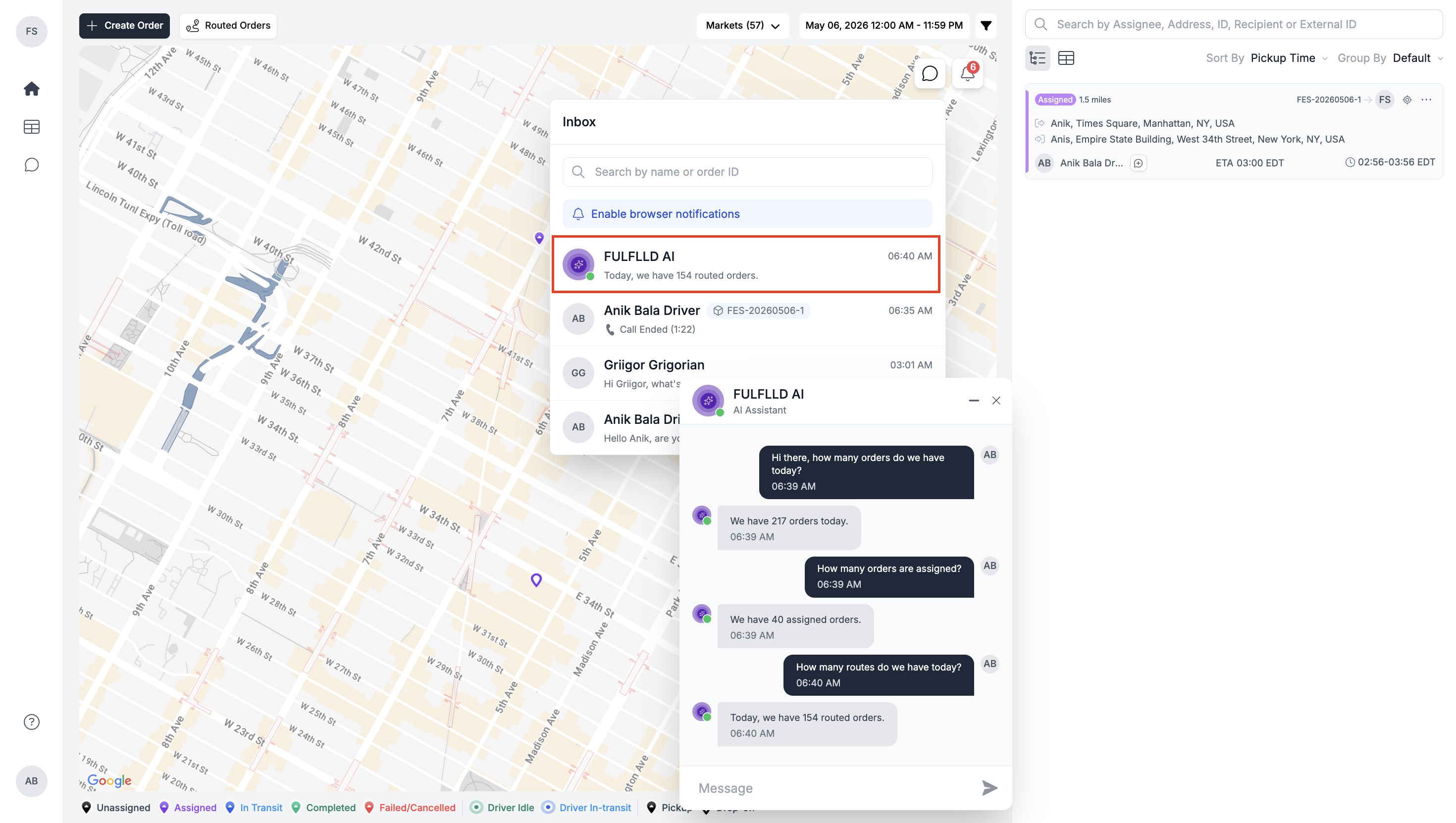
Within any chat box, you will see a call icon. Clicking this will immediately initiate a voice call with the driver in a separate tab.
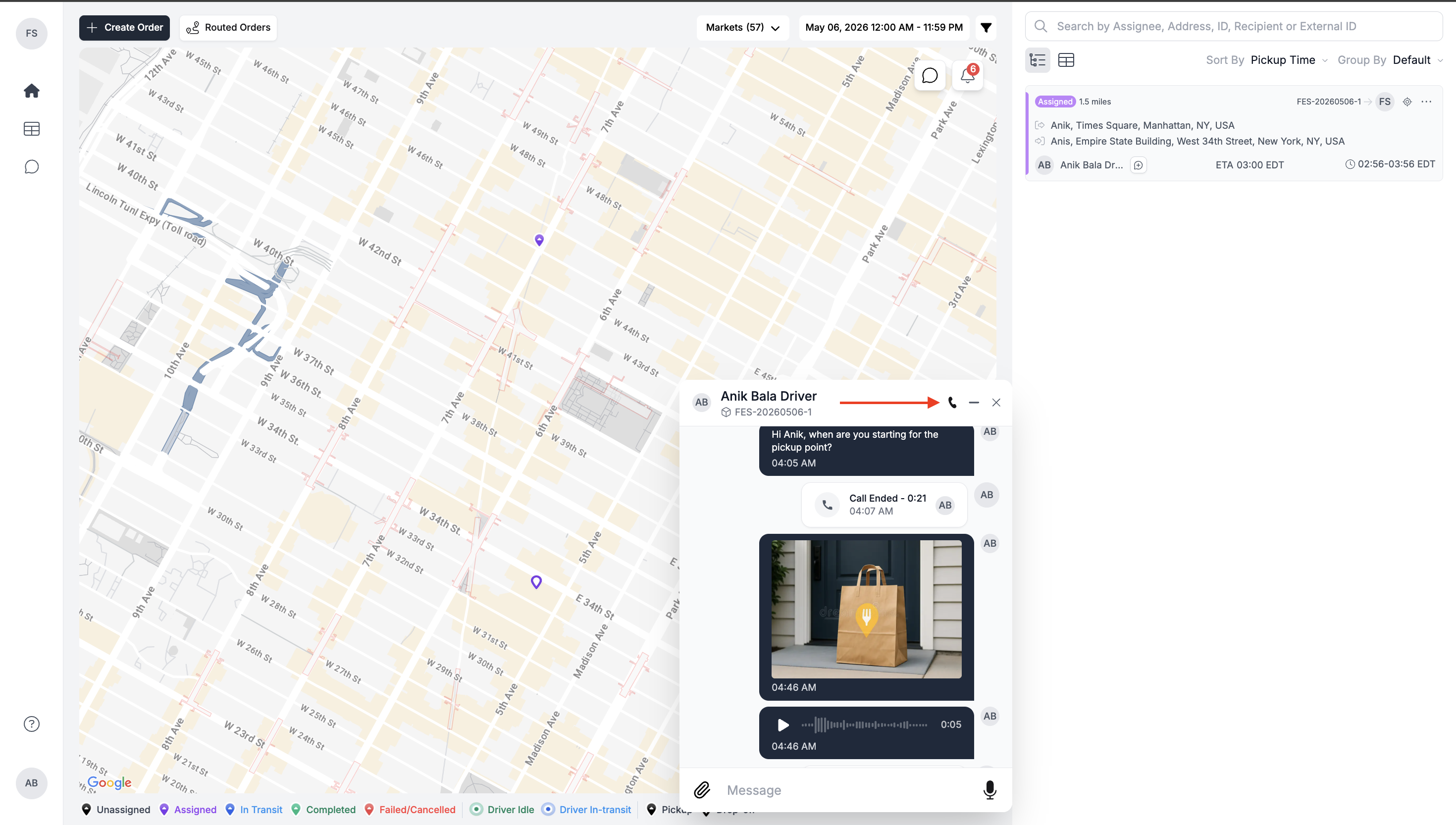
From the call screen, you can copy the call link and share it with other workspace users, allowing them to join the call directly.
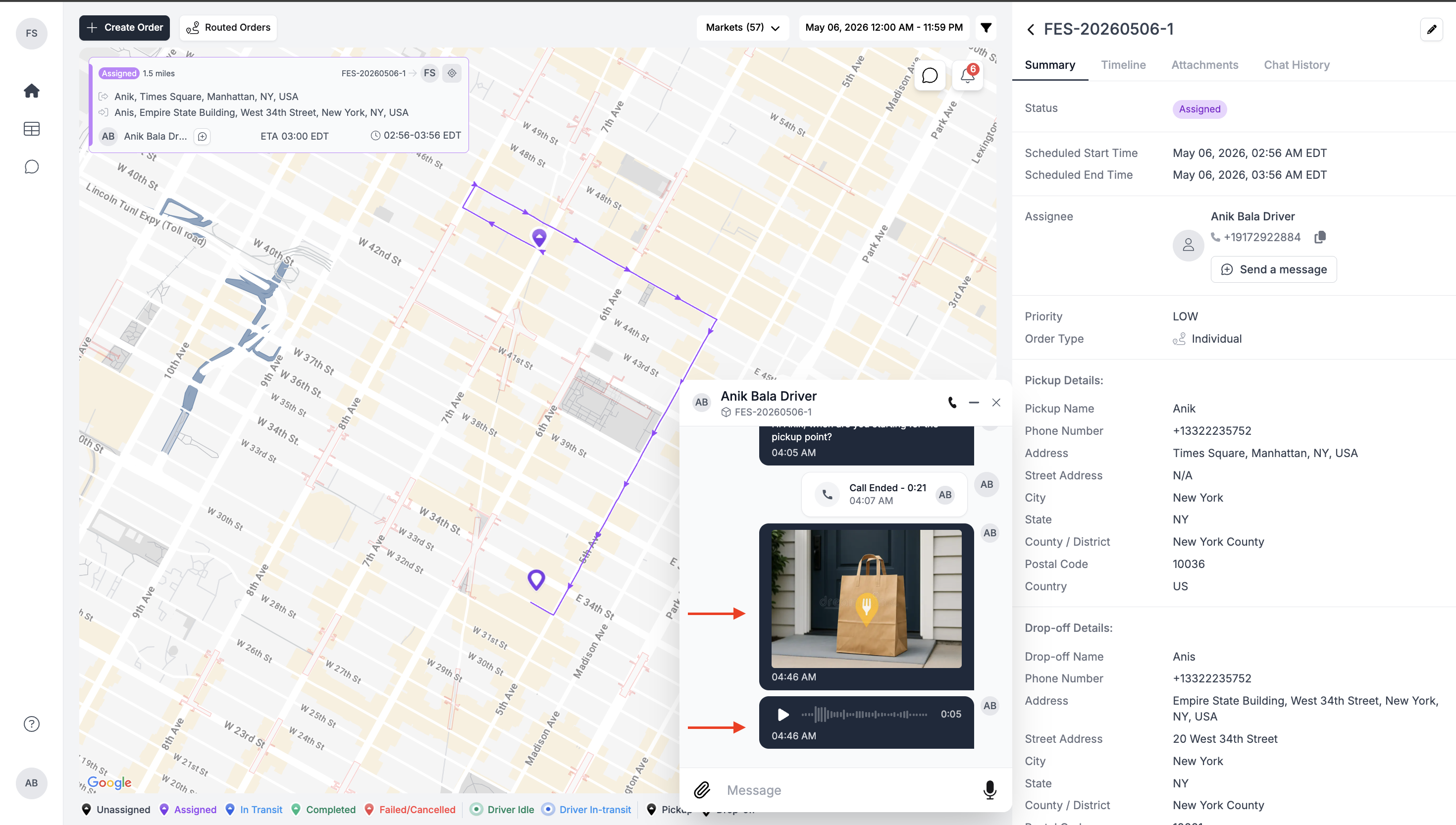
Send a Voice Message and Attachment
In the chat box, use the microphone icon to record and send voice messages for quick communication. You can also attach files and send them directly to the driver.
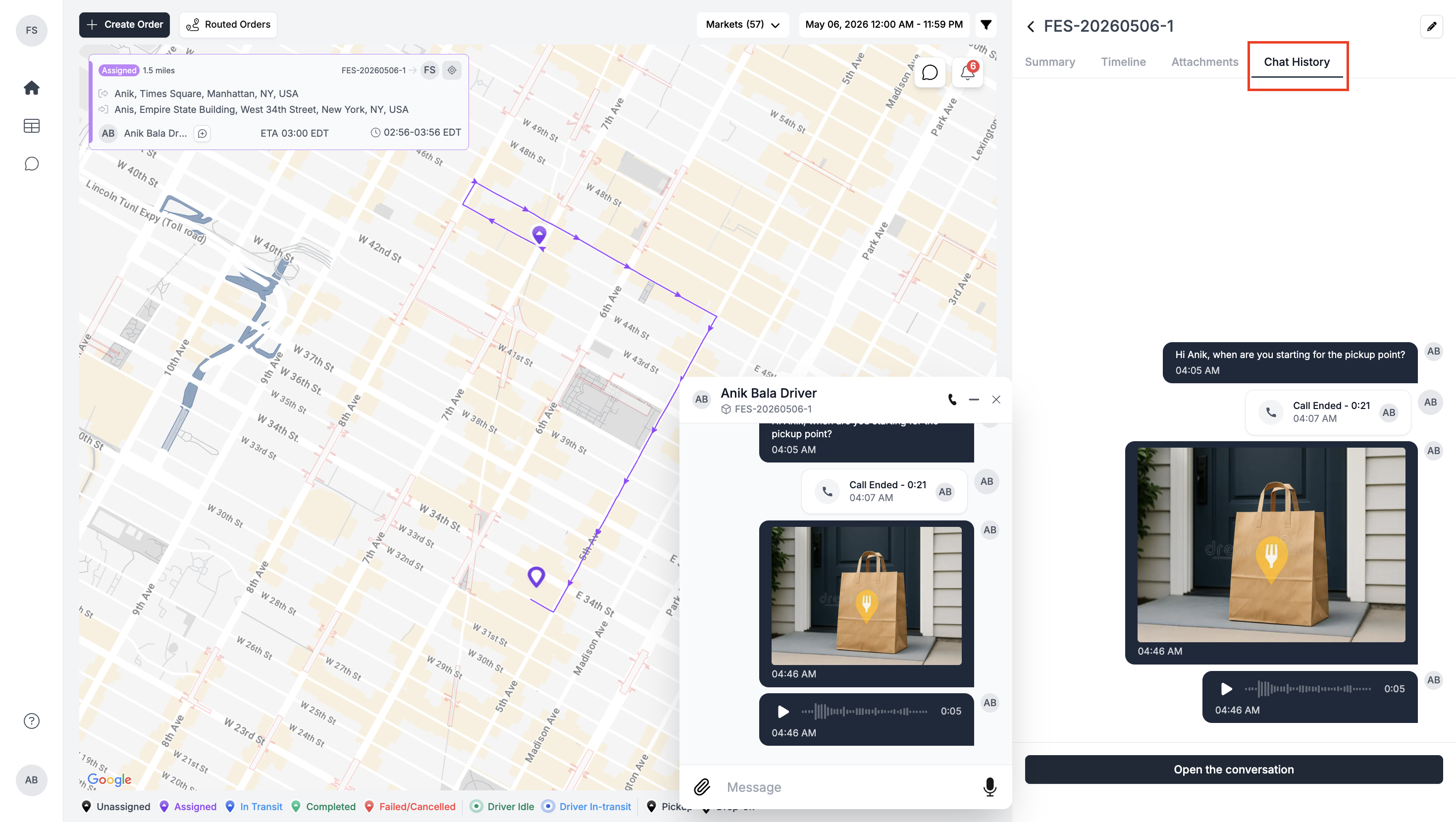
View Chat History
Within the order details, you can access the Chat History section to view previous conversations related to that driver or order. You can also click on Open Conversation to expand the full conversation view on the side panel for better visibility and continuity.
Manage Group Conversations and Call
For orders with multiple participants, conversations include all relevant users, and messages are visible to everyone in the thread. You can also initiate a group call from the conversation, allowing all participants to join and coordinate in real time.
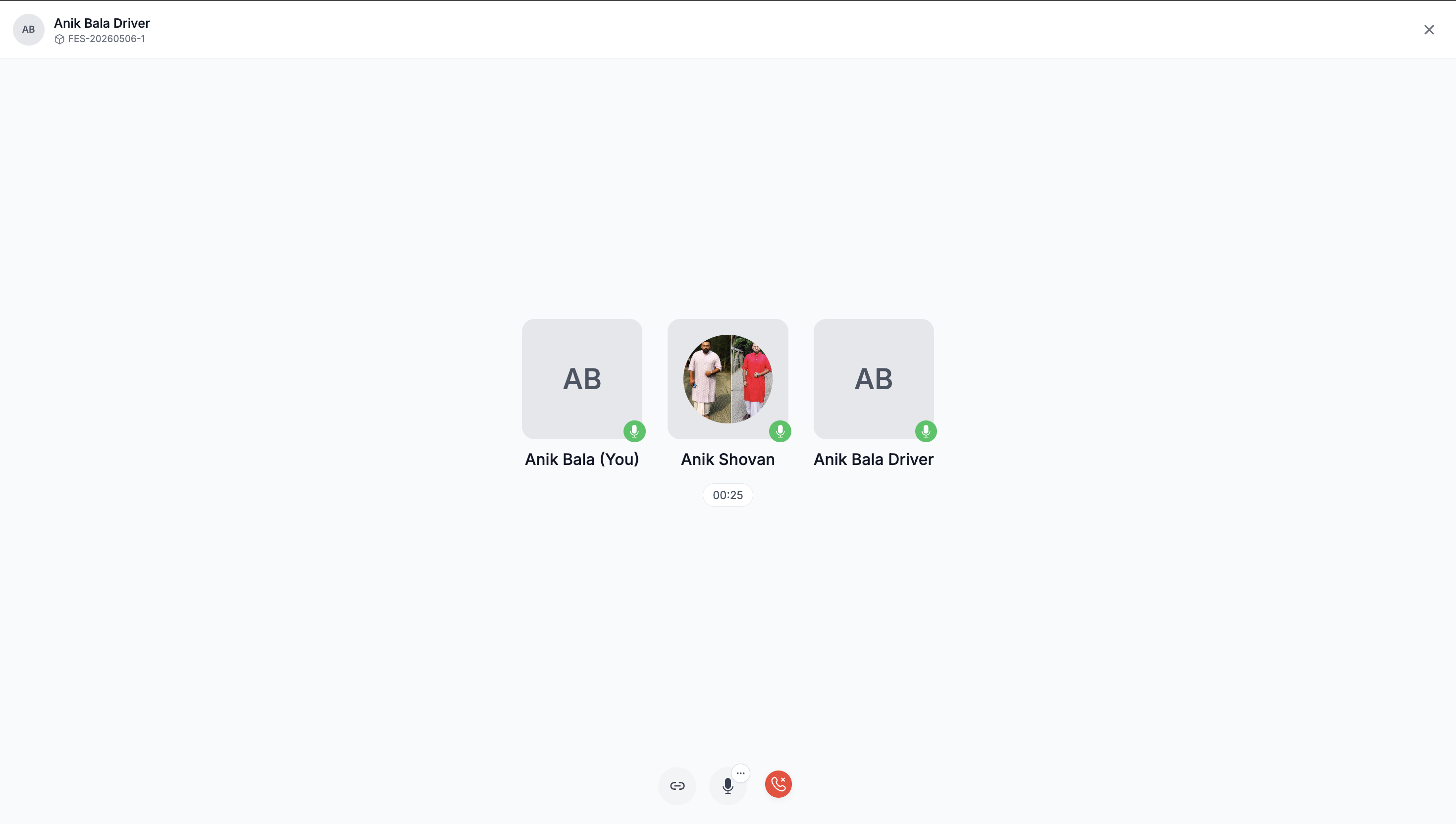
Enable Browser Notifications
Inside the Inbox, you’ll find an option to enable browser notifications. Once enabled and allowed from your browser, you will receive real-time alerts whenever a new message is received, helping you stay updated without constantly checking the app.
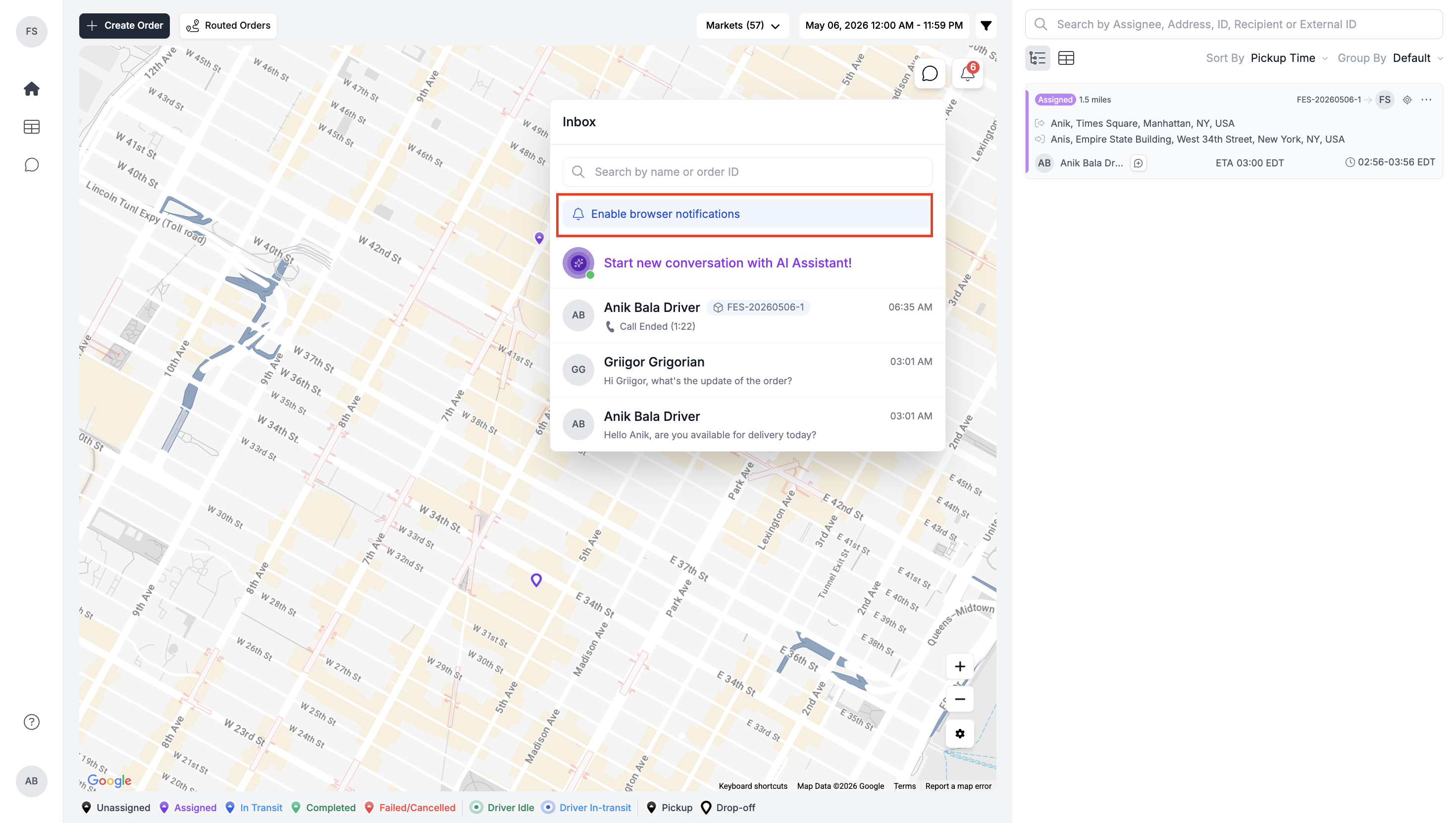
Chat with AI Dispatching Assistant
You can also chat with the AI Dispatching Assistant to get quick answers to basic order and route-related queries.
Important Notes
- Conversations can be initiated either as general chats or order-specific chats based on your use case.
- Order-specific chats help keep communication contextual and tied to a particular delivery.
- All messages in a group conversation are visible to every participant added to that order.
- Voice calls and group calls can be initiated directly from the chat interface.
- Browser notifications should be enabled to avoid missing important updates.
- Chat history is accessible from both Inbox and order details for easy reference.
- Attachments and voice messages can be used for faster and clearer communication.
- The AI Dispatching Assistant can help with quick queries related to orders and routes.
Updated 5 months ago