
Real Time Issue Tracking - Notification Panel
The Real-time Issue Tracking feature helps dispatchers quickly identify and resolve customer issues as they occur. Follow these steps to use it effectively.
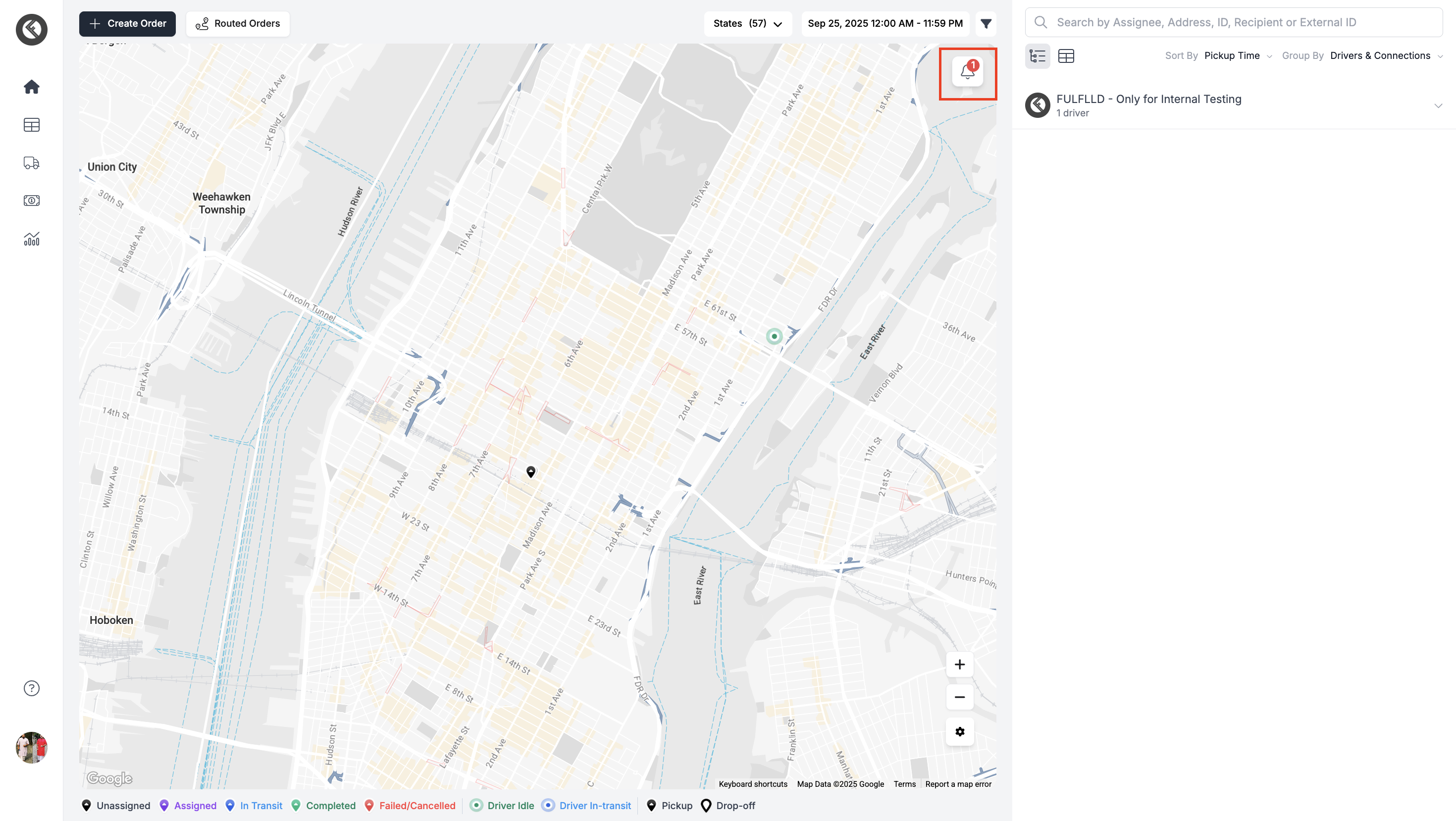
Step 1: Access Notifications
- Look for the bell icon in the top corner. A red badge shows the number of reported issues.
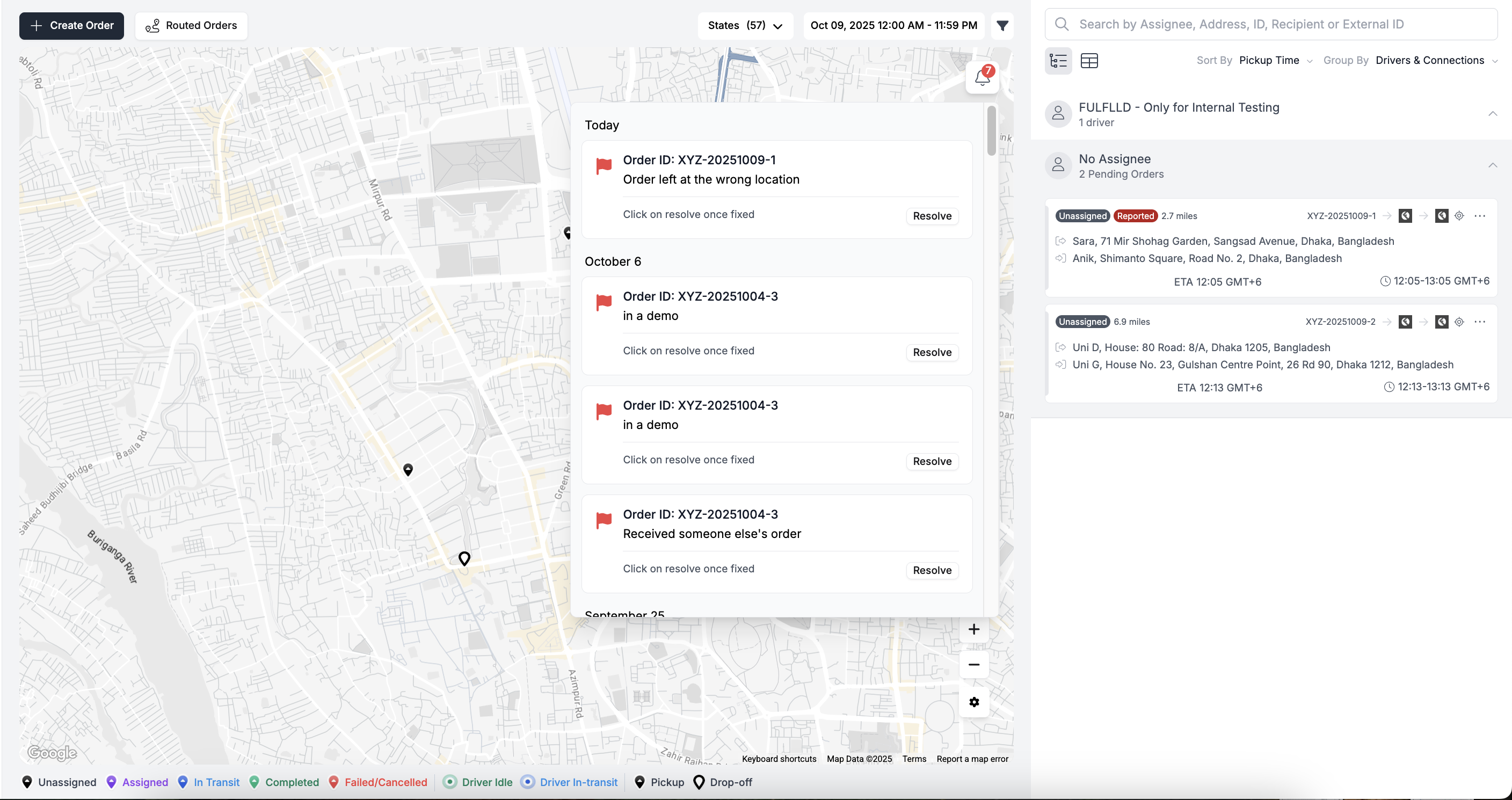
Step 2: View Reported Issues
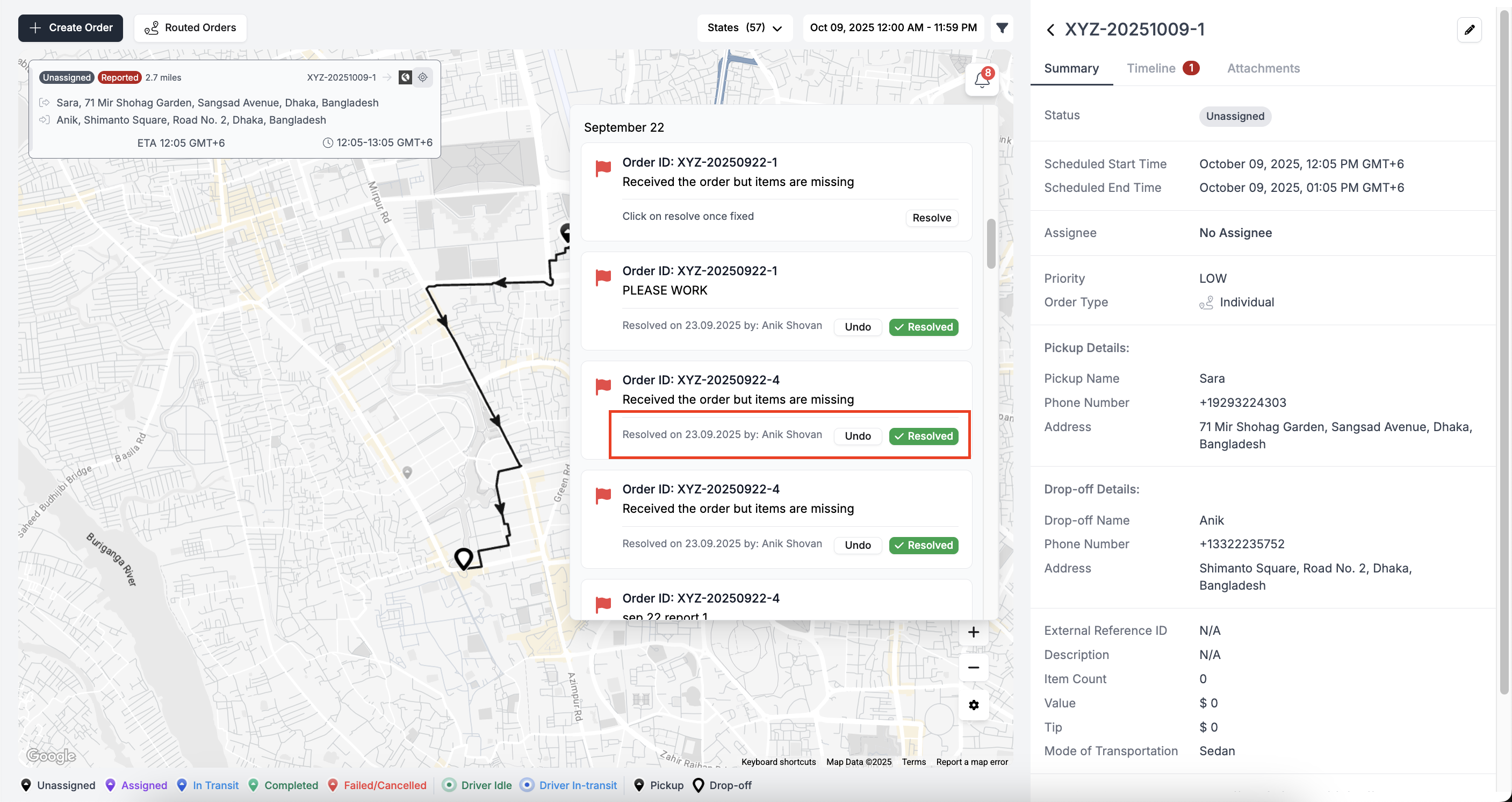
- Click the bell icon to open the notification panel. All reported issues appear here, even for past dates. Also, on the card you will see the "Reported" badge.
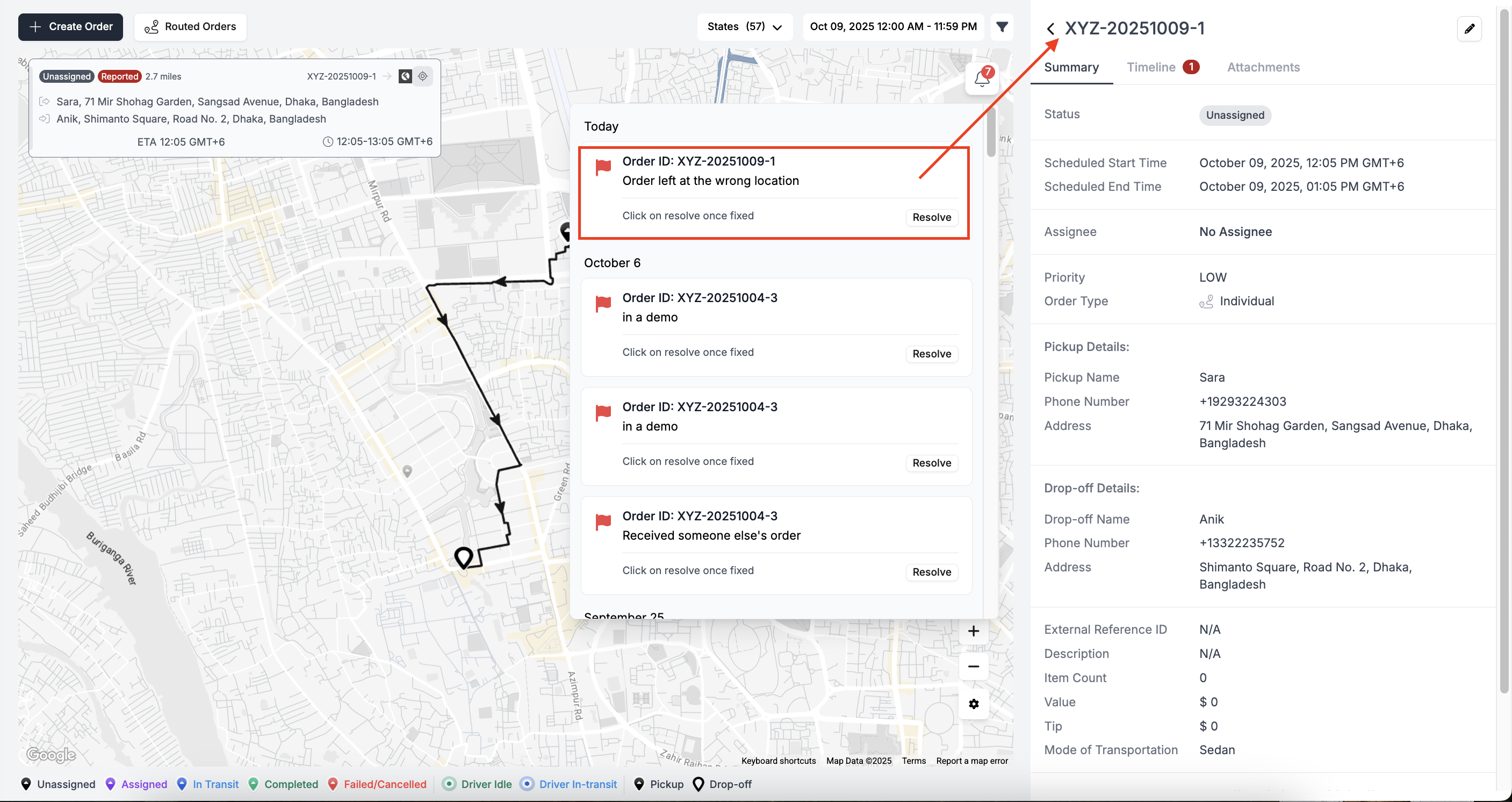
Step 3: Open an Order
- Click a notification to open the order in the right panel.
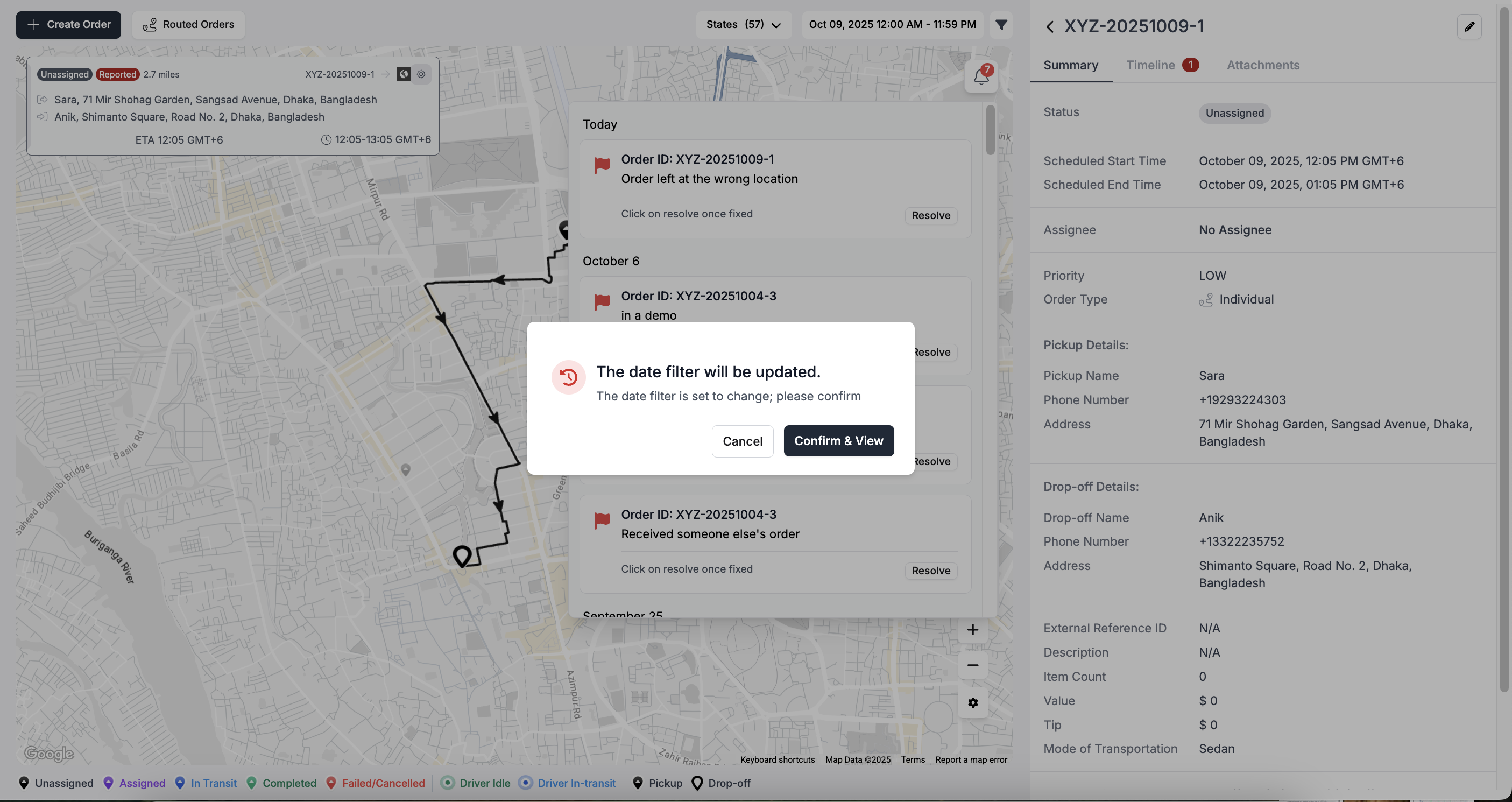
- For past-date orders, a prompt appears to confirm the date change.
Step 4: Resolve/Undo an Issue
Address the issue and click Resolve. You can see who resolved it and the timestamp. There's also a Undo button that will take the notification to the unresolved state again in case mistakenly click on Resolve.
Step 5: Resolve/Undo Tracking
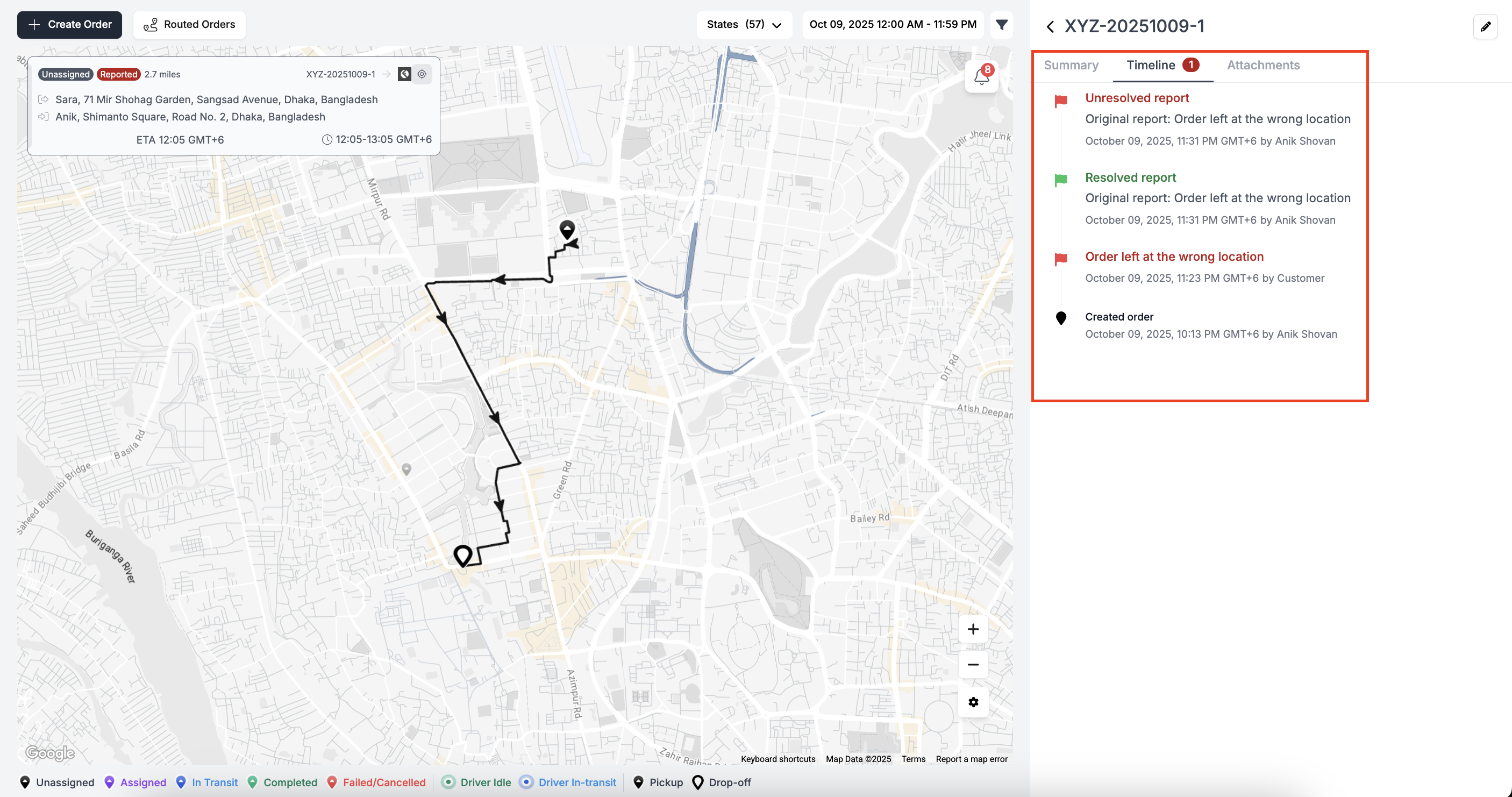
You can easily track resolved/unresolved status and who take the action from the order timeline.
Updated 12 months ago
Did this page help you?